> ## Documentation Index
> Fetch the complete documentation index at: https://docs.guhan.ai/llms.txt
> Use this file to discover all available pages before exploring further.
# On a LinkedIn profile
> See where a person stands in Guhan, add them to a List, read their full profile, enrich them, and find an email or phone number, all from their LinkedIn profile.
## See who's already in Guhan
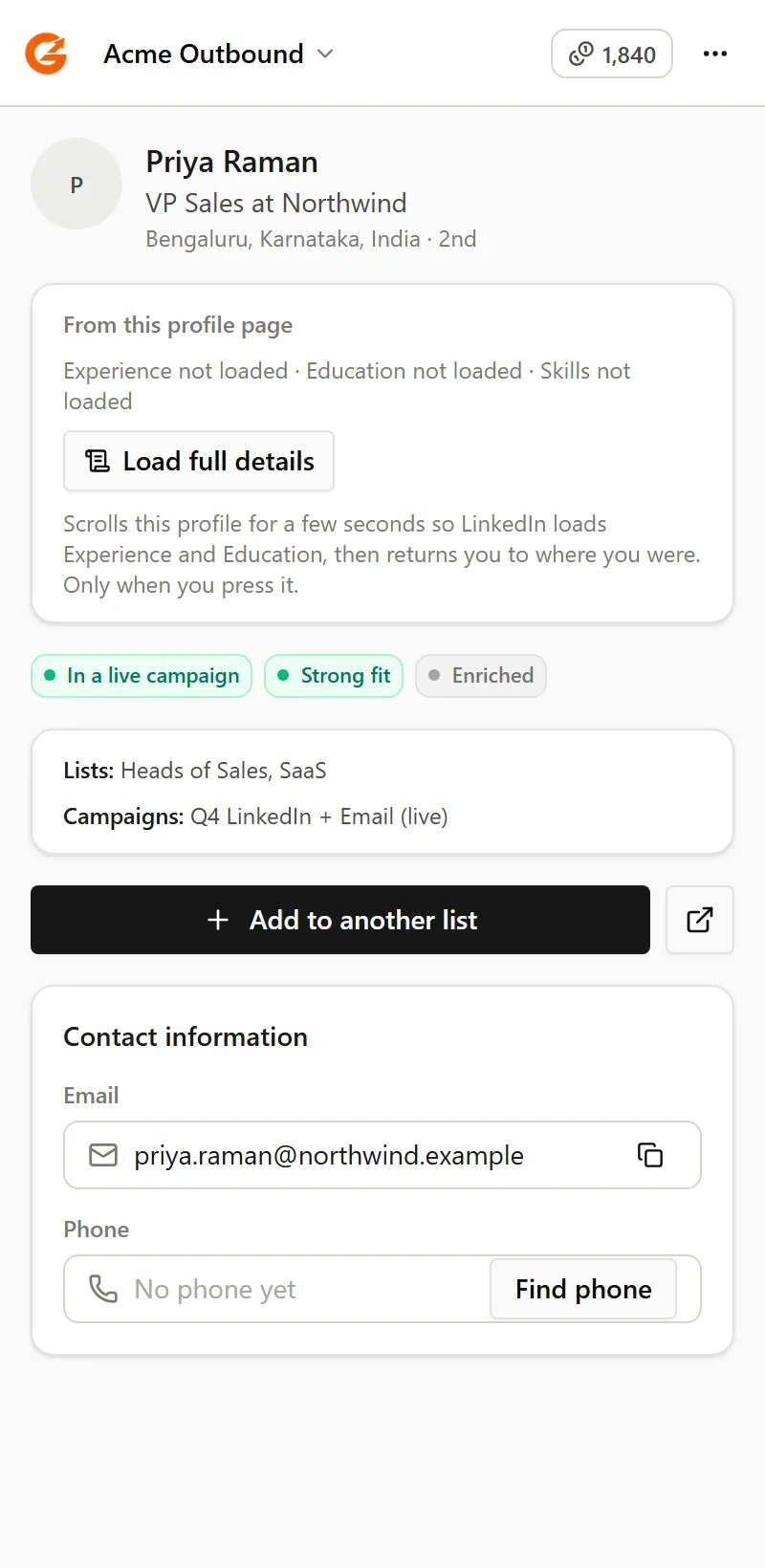
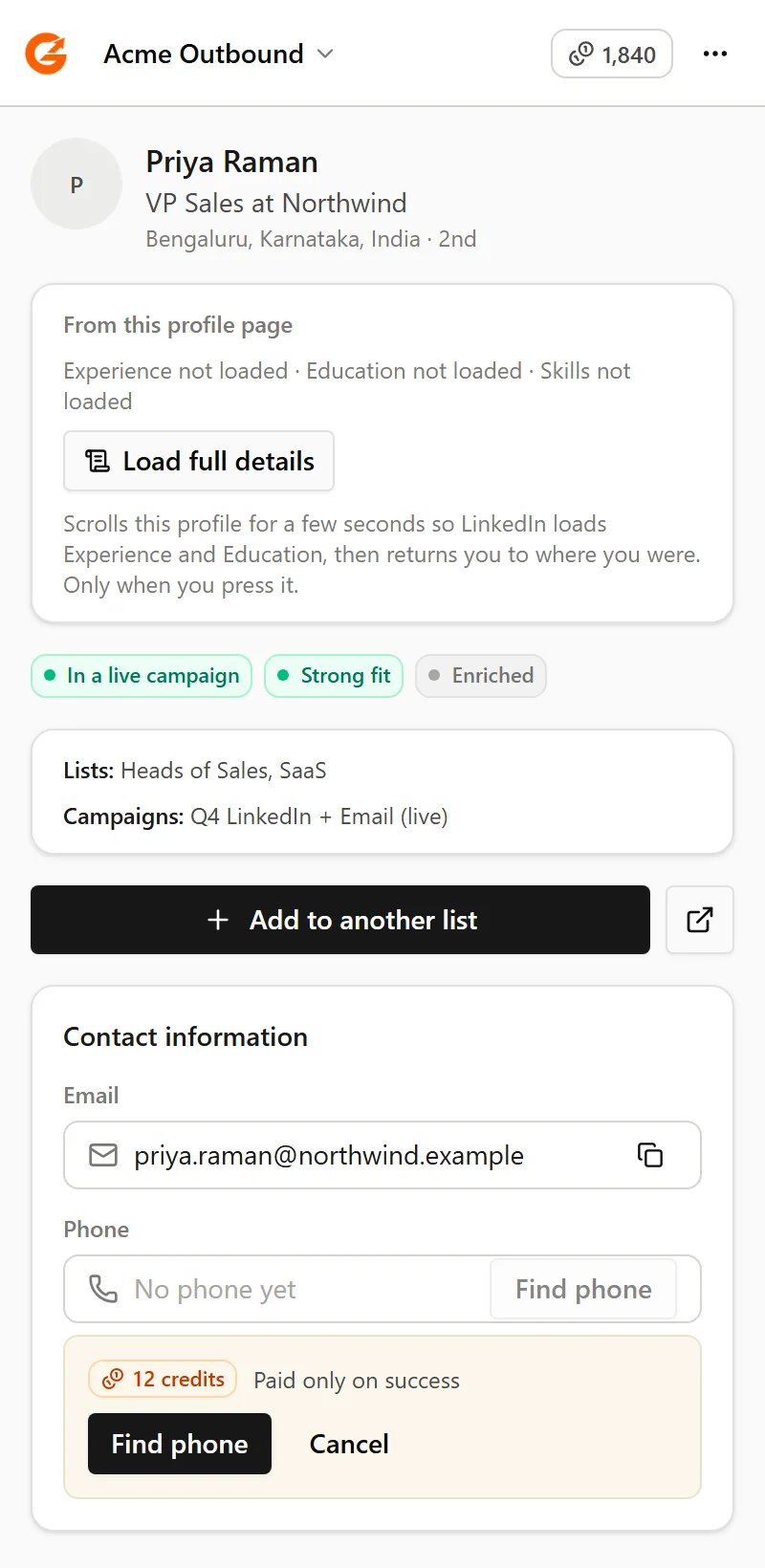
Open anyone's profile. Under their name the panel shows where they stand, so you never add or message the same person twice:
| You see | It means |
| - | - |
| **Not in Guhan** | They aren't in your workspace yet. |
| **In a list** | They're on a List and not in a live Campaign. |
| **In a live campaign** | They're enrolled in a Campaign that's running. |
| **Campaign paused** | Their Campaign is paused. |
| **Replied** | They've replied to you. |
| **Do not contact** | They're on your [Do Not Contact](/workspace-settings/do-not-contact) list. |
| **No reachable email** | They're in Guhan but no email address works for them. |
| **Possible duplicates** | More than one person in Guhan could be them. Guhan won't guess which, so it doesn't add them. |
You may also see **Strong fit** (or a weaker fit) and **Enriched**, and below that the Lists and Campaigns they belong to.
 ## Add them to a List
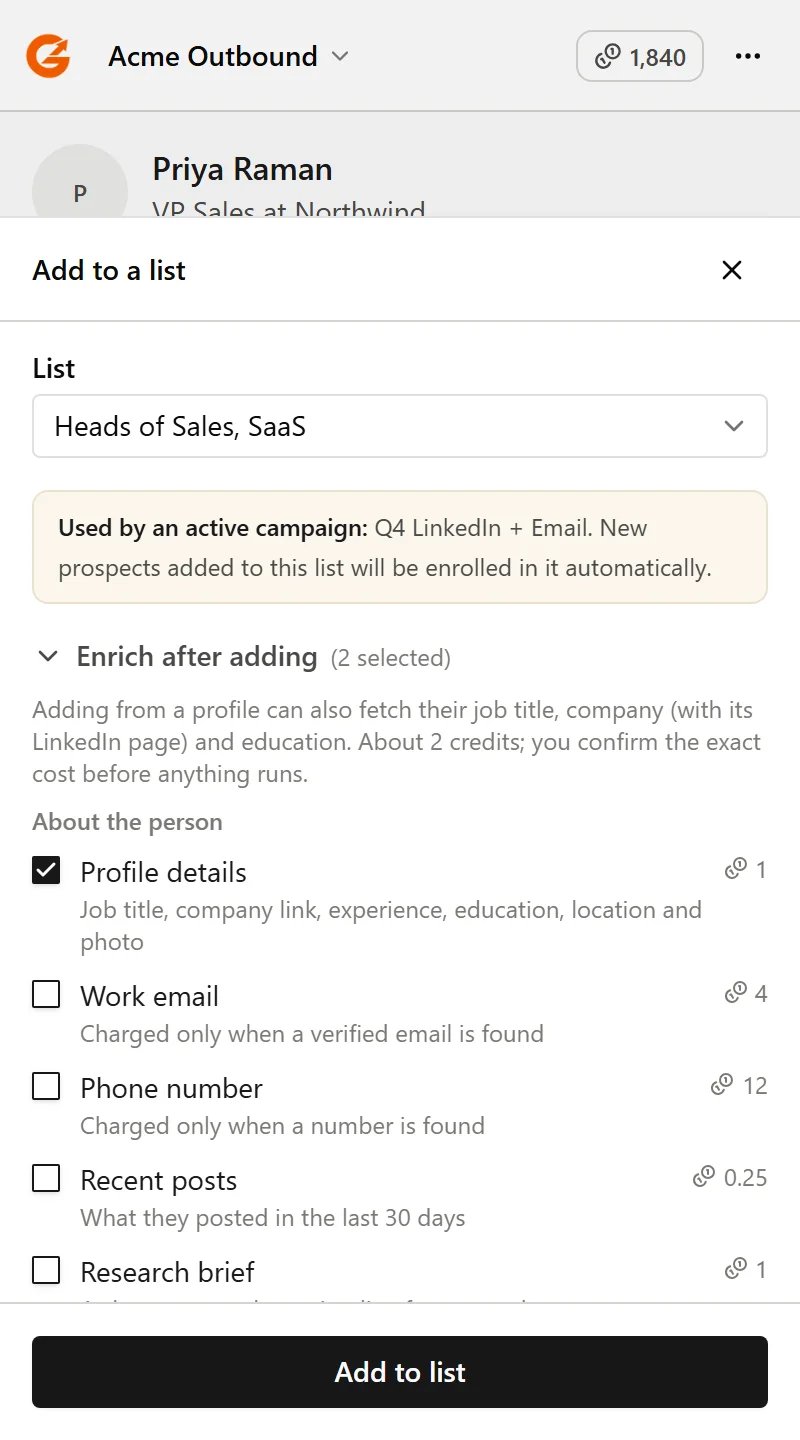
Click **Add to list**, then choose a List or create a new one.
* Lists that are fed by a search or a signal aren't offered, because those fill themselves. Pick or create a List you add to by hand.
* If an active Campaign uses the List, the panel tells you before you add. New people join that Campaign automatically, the same as anywhere else in Guhan.
* Adding someone is free. Your plan's active-prospect limit still applies, and the panel shows how much room you have left.
## Add them to a List
Click **Add to list**, then choose a List or create a new one.
* Lists that are fed by a search or a signal aren't offered, because those fill themselves. Pick or create a List you add to by hand.
* If an active Campaign uses the List, the panel tells you before you add. New people join that Campaign automatically, the same as anywhere else in Guhan.
* Adding someone is free. Your plan's active-prospect limit still applies, and the panel shows how much room you have left.
 ## Read the full profile
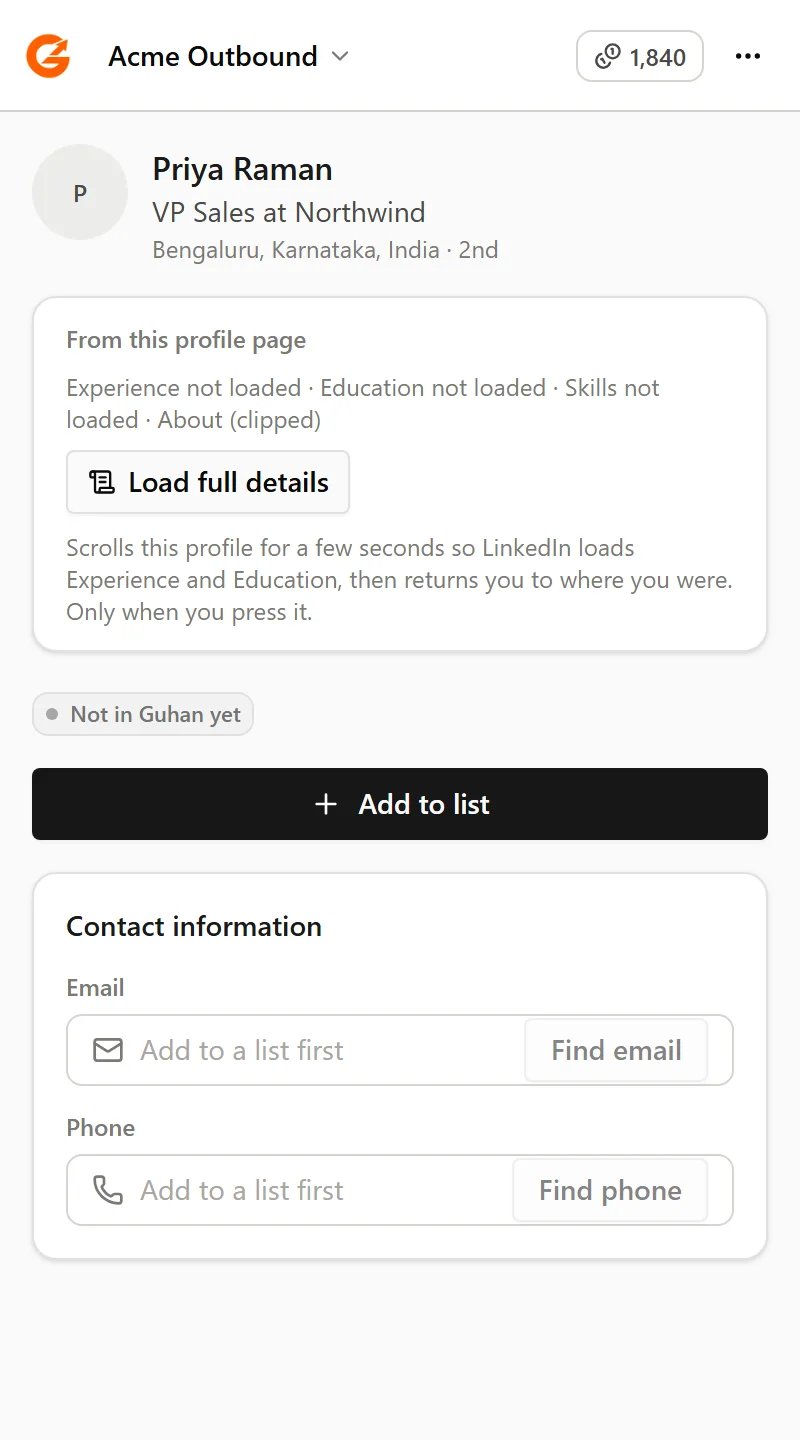
LinkedIn only loads a profile's Experience and Education when you scroll down to them, so at first the panel can't see them. Click **Load full details** and Guhan scrolls that profile for a few seconds, reads the current job and company, schools and top skills, then takes you back to where you were. It only happens when you click.
When you then add the person, the job title and company come with them.
## Read the full profile
LinkedIn only loads a profile's Experience and Education when you scroll down to them, so at first the panel can't see them. Click **Load full details** and Guhan scrolls that profile for a few seconds, reads the current job and company, schools and top skills, then takes you back to where you were. It only happens when you click.
When you then add the person, the job title and company come with them.
 ## Enrich them after adding
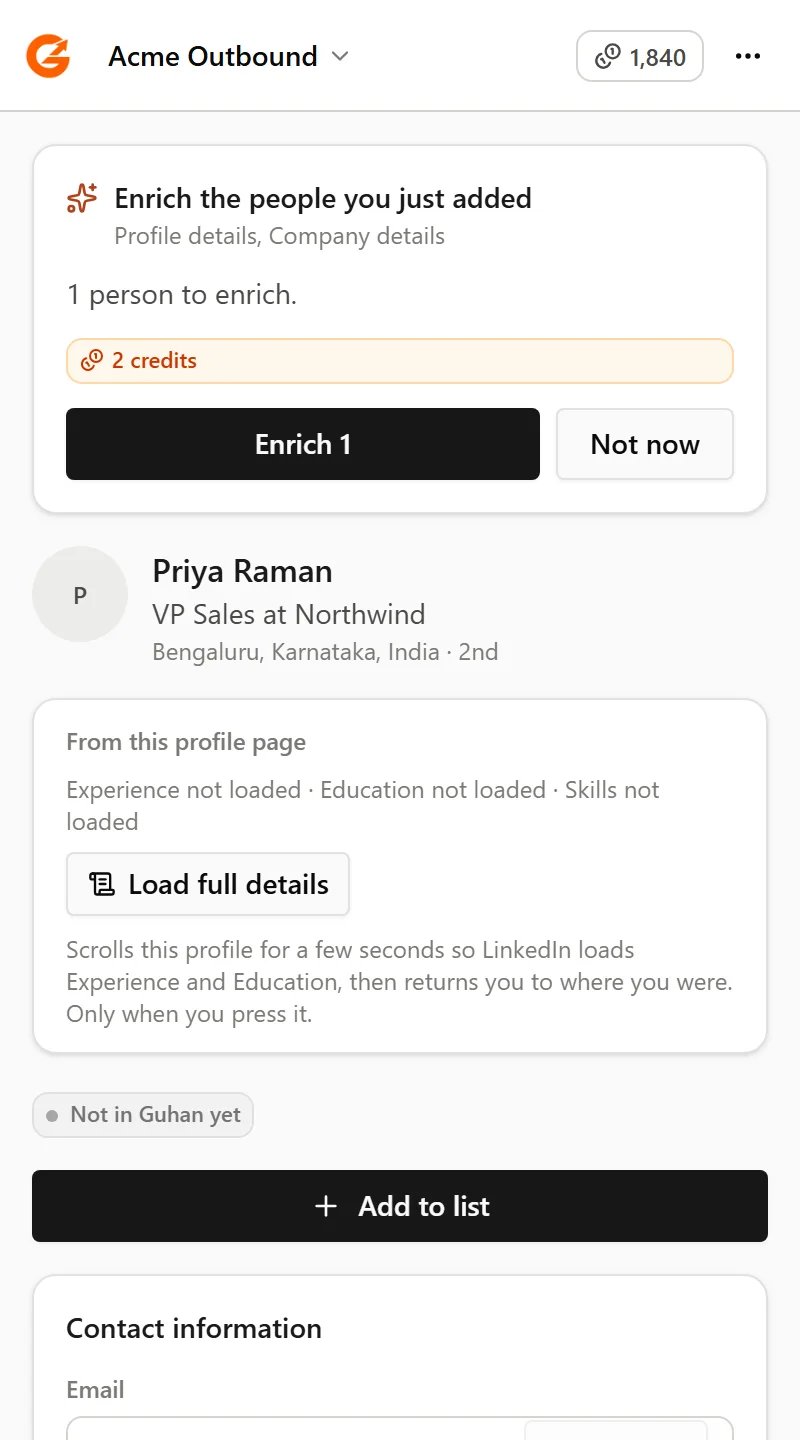
When you add someone, you can also choose to enrich them: profile details, work email, phone number, recent posts, a research brief, company details and company posts. Nothing is ticked by default, except that adding from a profile page ticks profile details and company details for you. You can untick them.
Nothing is charged while people are being added. When the add finishes, a card shows exactly how many people will be enriched and what it will cost, and runs only when you click **Enrich**. Costs are on [Plans and credits](/workspace-settings/plans-and-credits). See also [Enrichment](/audience/enrichment).
## Enrich them after adding
When you add someone, you can also choose to enrich them: profile details, work email, phone number, recent posts, a research brief, company details and company posts. Nothing is ticked by default, except that adding from a profile page ticks profile details and company details for you. You can untick them.
Nothing is charged while people are being added. When the add finishes, a card shows exactly how many people will be enriched and what it will cost, and runs only when you click **Enrich**. Costs are on [Plans and credits](/workspace-settings/plans-and-credits). See also [Enrichment](/audience/enrichment).
 ## Find an email or a phone number
The contact section shows the cost before anything happens, and you're charged only if a verified email or a number is found.
## Find an email or a phone number
The contact section shows the cost before anything happens, and you're charged only if a verified email or a number is found.
 ## Related
Bring a whole search into a List.
What costs credits, and how much.
This documentation is built and hosted on [Mintlify](https://mintlify.com), a developer documentation platform.
## Related
Bring a whole search into a List.
What costs credits, and how much.
This documentation is built and hosted on [Mintlify](https://mintlify.com), a developer documentation platform.