> ## Documentation Index
> Fetch the complete documentation index at: https://docs.guhan.ai/llms.txt
> Use this file to discover all available pages before exploring further.
# Searches and imports
> Import people from a LinkedIn search into a Guhan List, pick people as you go, and watch the progress.
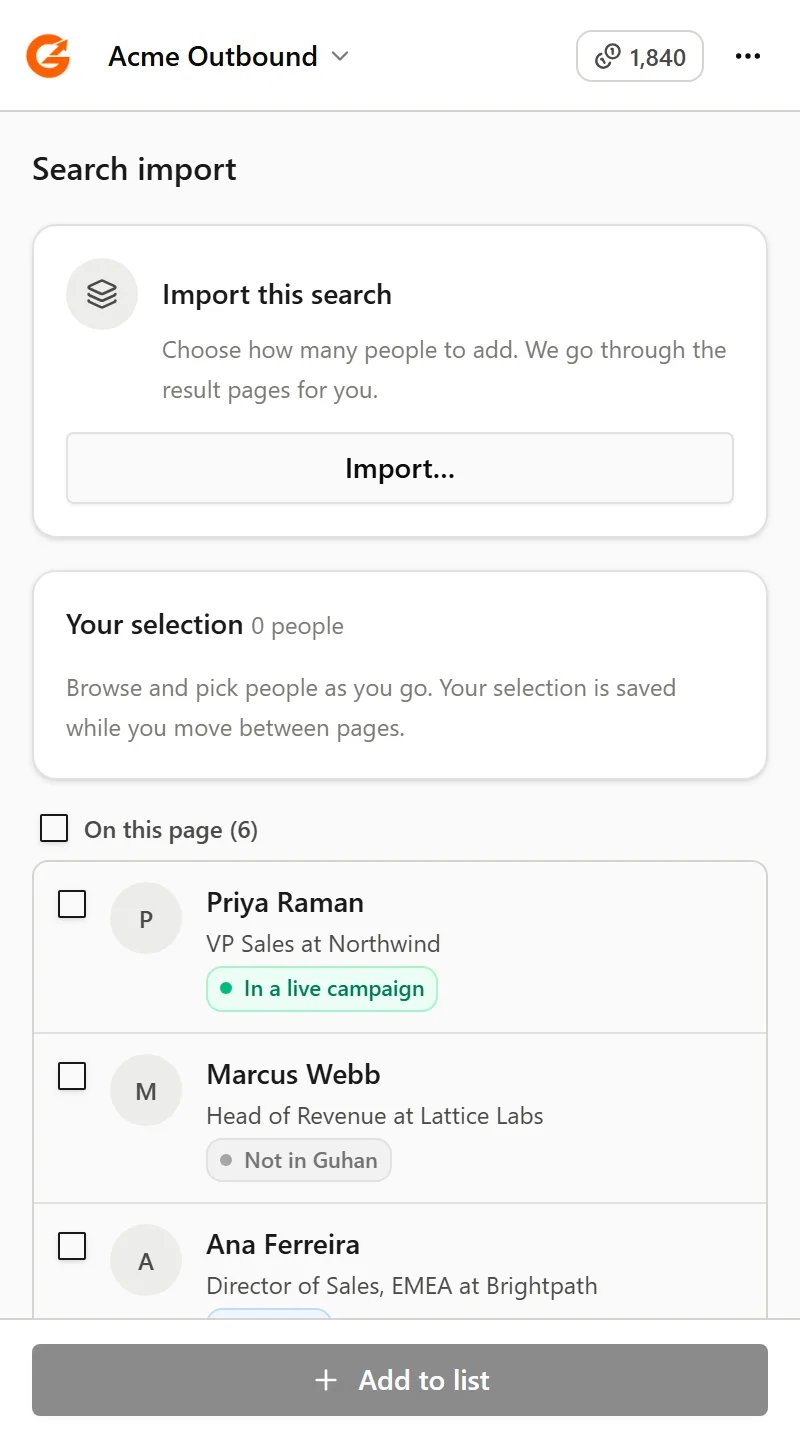
Run any LinkedIn people search, with any filters you like. The panel lists the people on the page, each with the same status badges described in [On a LinkedIn profile](/chrome-extension/profiles#see-whos-already-in-guhan).
## Import from a search
Click **Import…**, choose a List and how many people to add (up to 999), and Guhan goes through the result pages for you, a few seconds apart, the way you'd browse. Keep the LinkedIn tab open while it runs. When LinkedIn shows a person's current title and company in the results, those come along.
 ## Pick people as you go
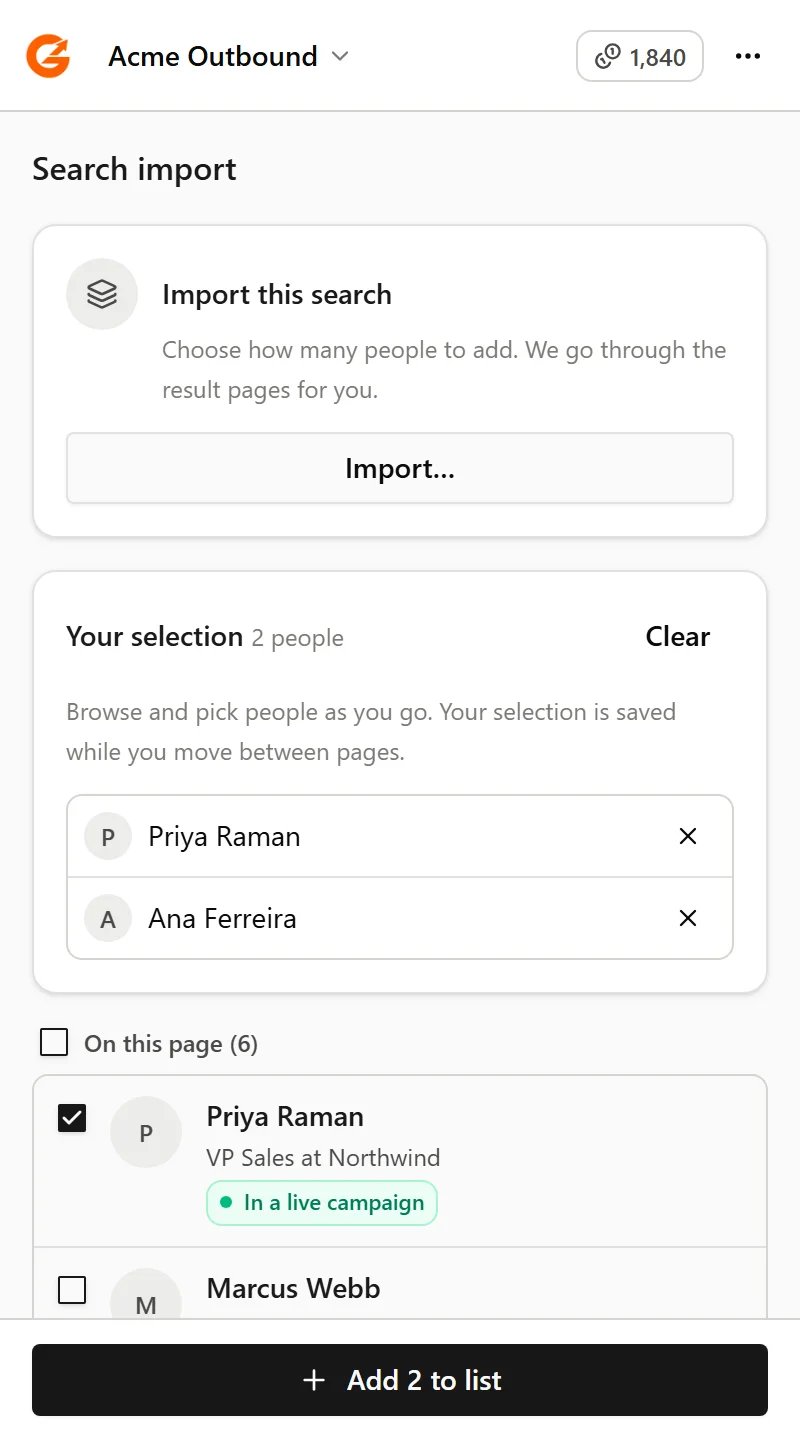
Instead of importing a whole search, tick the people you want. Your picks are kept as you move through the result pages of that search, then **Add to list** adds them together. Start a different search and you start with a fresh selection, so picks from earlier browsing never carry into the next import.
## Pick people as you go
Instead of importing a whole search, tick the people you want. Your picks are kept as you move through the result pages of that search, then **Add to list** adds them together. Start a different search and you start with a fresh selection, so picks from earlier browsing never carry into the next import.
 ## Watch it work
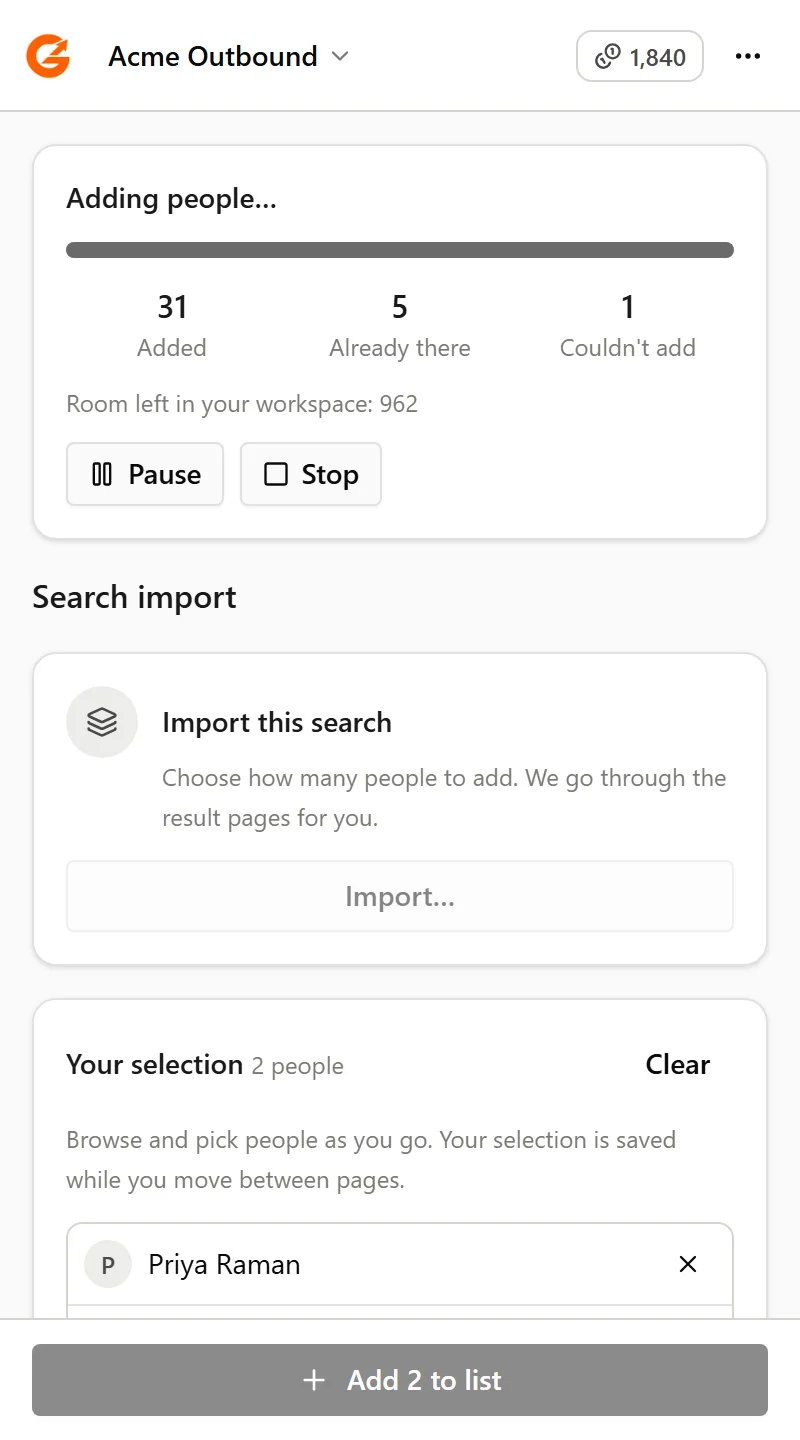
A progress card at the top shows how many people were added, were already in the List, or couldn't be added. Pause or stop whenever you like; everyone already added stays added.
## Watch it work
A progress card at the top shows how many people were added, were already in the List, or couldn't be added. Pause or stop whenever you like; everyone already added stays added.
 ## If an import stops partway
LinkedIn may have asked you to check something, or the tab was closed. Look at the LinkedIn tab, finish anything it asks for, then start the import again. People already added stay added, and anyone already in the List is skipped.
## Related
The same import on a company's employees, an event's attendees, or your followers.
Where the people you add end up.
This documentation is built and hosted on [Mintlify](https://mintlify.com), a developer documentation platform.
## If an import stops partway
LinkedIn may have asked you to check something, or the tab was closed. Look at the LinkedIn tab, finish anything it asks for, then start the import again. People already added stay added, and anyone already in the List is skipped.
## Related
The same import on a company's employees, an event's attendees, or your followers.
Where the people you add end up.
This documentation is built and hosted on [Mintlify](https://mintlify.com), a developer documentation platform.