

What you’ll see
The Inbox is a two-pane view: a list of conversations on the left, the open conversation on the right.Needs you
Conversations with something waiting on a person: a draft to approve, a thread to take over, a meeting request, or a choice to make.
Active
Conversations in motion where nothing is waiting on you right now.
Resolved
Closed conversations. A new reply from the prospect reopens the thread automatically.
Filters
Switch between Mine and Team (Team needs permission to view everyone’s conversations), pick a channel tab (All, Email, LinkedIn, WhatsApp), or search by prospect name.
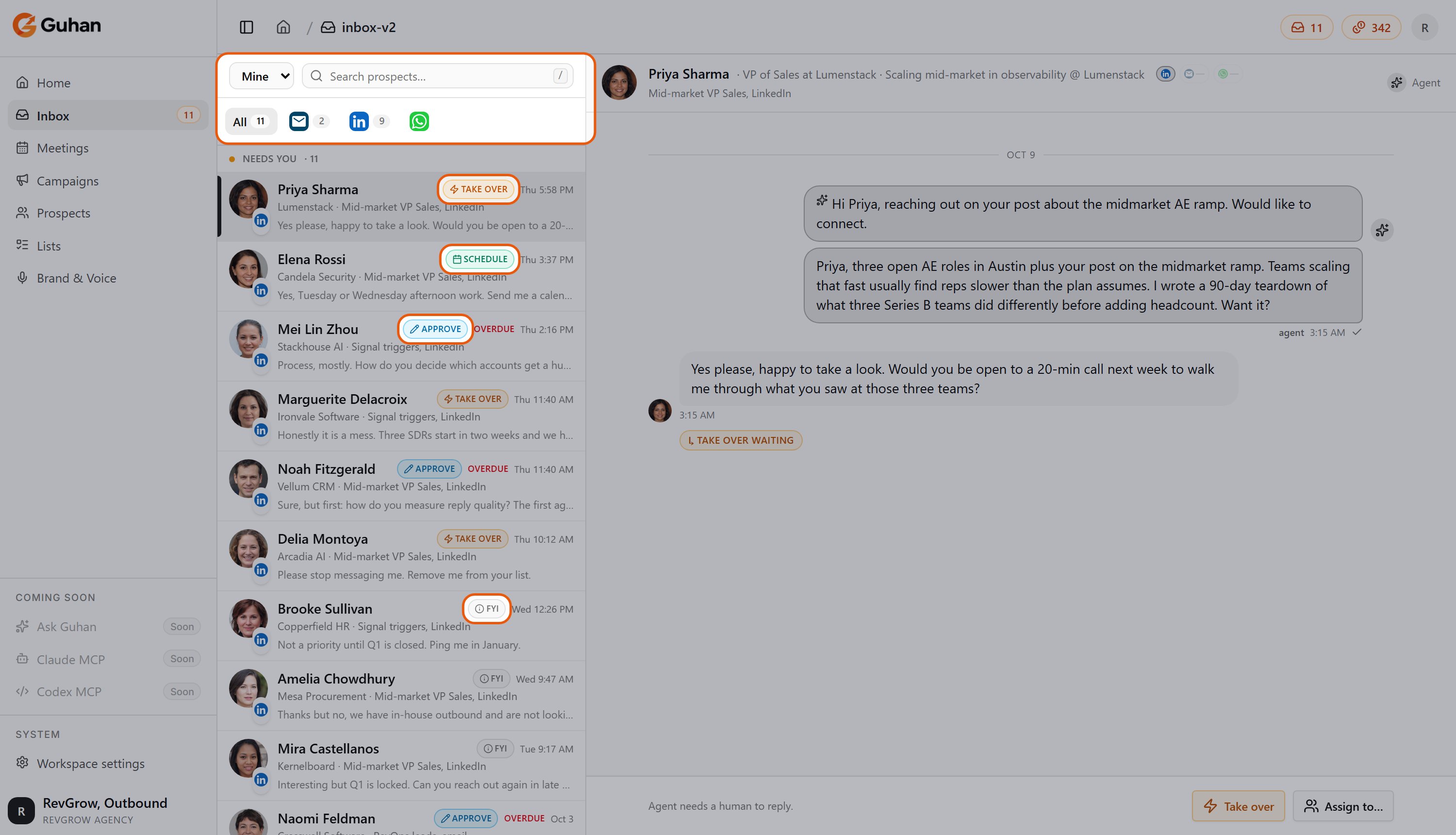
The Inbox: the Mine scope, search and channel tabs at the top, then conversations that need you, each with a tag for the decision waiting
The right pane shows the full thread for that prospect, with a marker on the last message if a decision is pending. If the same person is also in a conversation on another channel, buttons at the top of the thread let you jump across.
How replies reach you
Guhan sorts every reply into one of seven kinds. What happens next depends on the kind and on your reply policy.
If Guhan is not confident that a reply is a “no” or an unsubscribe, it does not stop anything. It hands the thread to you instead, because stopping a sequence cannot be undone.
Bounced emails never show up as replies. A bounce is recorded on the original message and the sequence for that prospect stops.
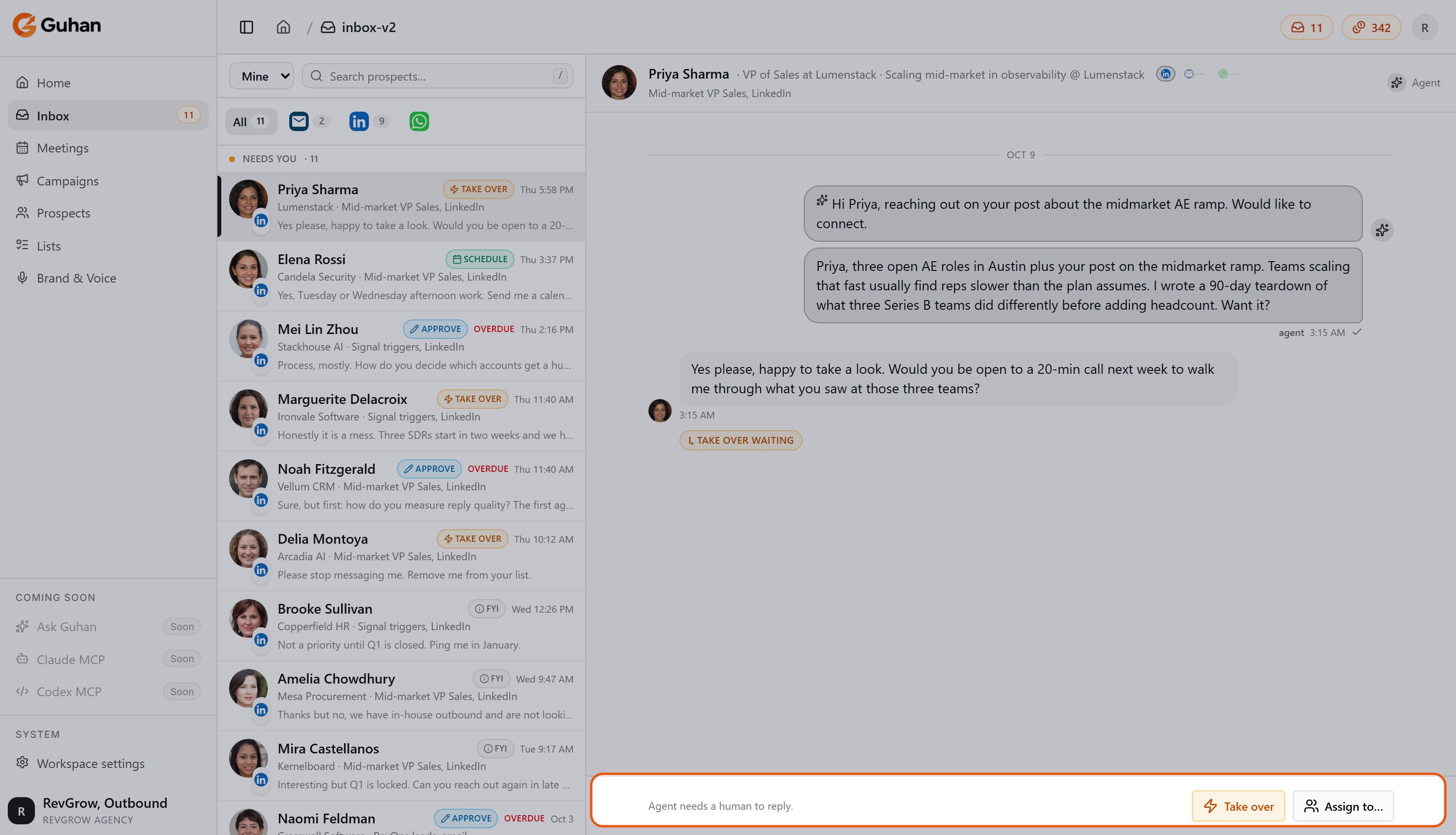
An open conversation: the thread on the right and, at the bottom, what Guhan needs from you
If something’s off
I don't see Team
I don't see Team
Team view needs permission to see every conversation in the workspace. Without it you see only your own. See Roles and permissions.
A reply is missing from the Inbox
A reply is missing from the Inbox
Replies are matched to a conversation Guhan started. A message sent to the same account outside a campaign will not appear. Check that the sender account is healthy under Settings, Sender accounts.
I closed a thread and it came back
I closed a thread and it came back
That is expected. When the prospect replies again, the conversation reopens.
Related
Handle replies
The daily routine, step by step.
AI reply drafts
Reply policy and how drafts work.
Meetings
What happens after a meeting request.