Work through your Inbox quickly. Approve drafts, take over conversations, and send booking links.
Open the Inbox, start at “Needs you”, and clear it from the top.Every row in “Needs you” has one primary action at the bottom of the thread. This page walks through each of them.
Sidebar, Inbox. Leave the scope on Mine to see your own conversations. Use the channel tabs to narrow to Email, LinkedIn, or WhatsApp.
2
Start with meeting requests
Rows tagged Schedule are prospects who asked to meet. Open one and click Send link. Guhan creates a booking link and sends it in the thread. See Meetings.
A meeting request: Schedule waiting, with Send link at the bottom
3
Approve drafts
Rows tagged Approve have a drafted reply waiting. Read it, then click Approve & send, or Edit to change it first, or Reject to discard it.
A drafted reply waits at the bottom: Edit, Reject or Approve & send
4
Take over the rest
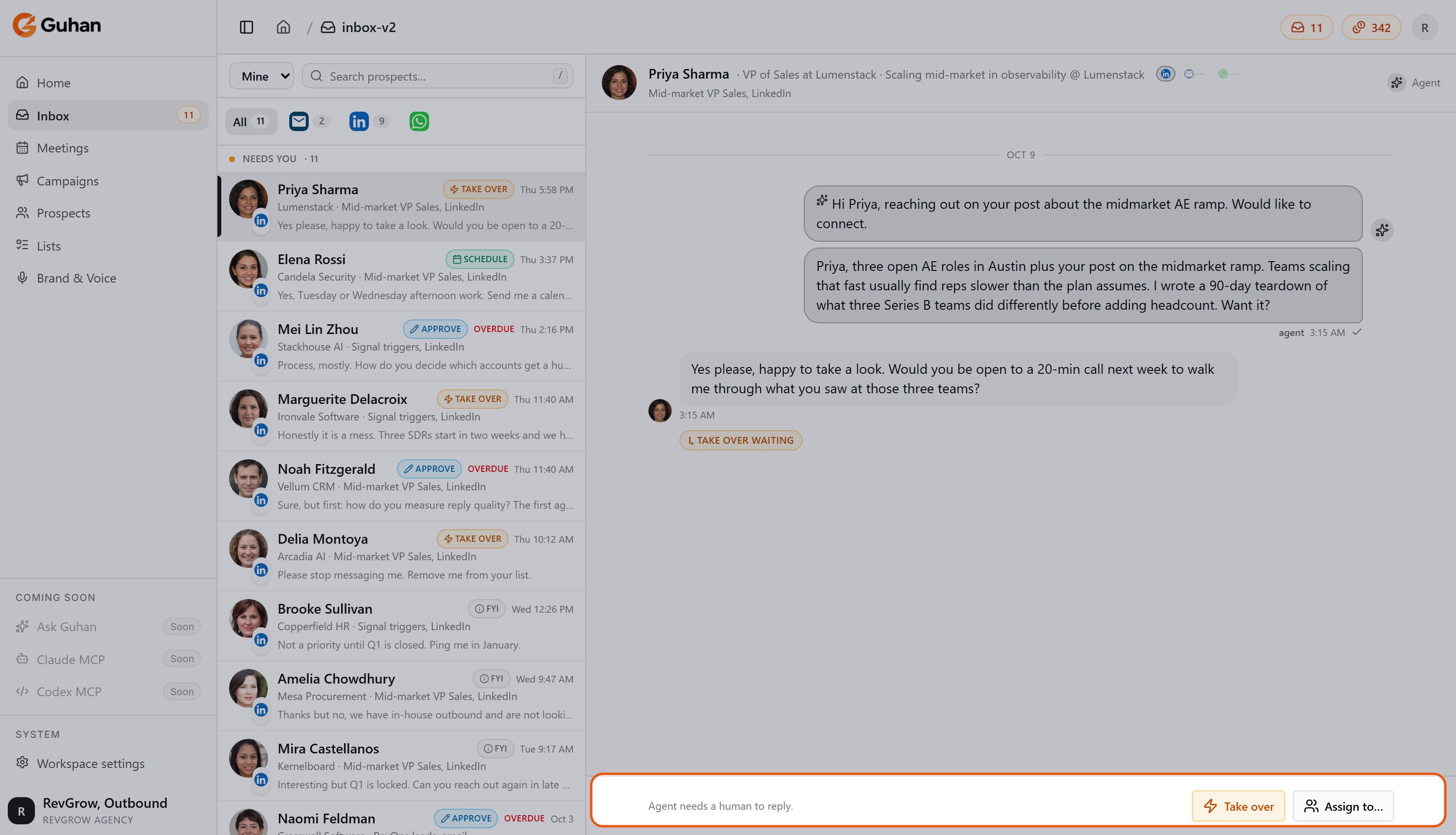
Rows tagged Take over are yours to write. Click Take over, then reply in the composer at the bottom.
A conversation Guhan handed to you: Take over or Assign to
5
Acknowledge the FYIs
Rows tagged FYI need no action. Click Got it to clear them.
An FYI conversation: nothing needs sending, just acknowledge it with Got it
Sends the drafted reply from the same sender account that started the conversation. To change the wording first, click Edit. The draft opens in the composer, and Approve & send sends your version.
Reject
Discards the draft. Nothing is sent.
Take over
Makes the conversation yours and stops every automated sequence running on that same thread and channel. This is deliberate: an automated message arriving in the middle of a human conversation reads as spam. Other channels for the same prospect keep running unless you take those over too.If you start typing in the composer on a conversation that is not yet assigned to you, the same thing happens.
Assign to
Next to Take over. Pick a teammate and the conversation moves to their Inbox, still waiting for them to act.
Send link
On a meeting request. Creates a booking link and sends it in the thread. Needs a connected calendar. See Calendar integrations.
Decide
When Guhan needs a choice from you, each option appears as a button. Hover an option to see why Guhan suggested it. Click one and Guhan carries on with your choice.
Conversations are tied to the sender account that sent the last message, so they show up for the person who owns that account. Mine shows your conversations. Anyone with permission to see every conversation can switch to Team.
A message explains why. The most common cause is a sender account that needs reconnecting. Fix it under Settings, Sender accounts, then try again. See Sender accounts.
The composer tells me to take over first
The conversation is assigned to someone else, or Guhan’s sequence is still running on it. Click Take over to reply.
Two drafts for the same prospect
If the prospect is in more than one campaign, each can draft a reply. When you send one, the other drafts for the same message are cleared automatically.
{"docsConfig":{"theme":"mint","$schema":"https://mintlify.com/docs.json","name":"Guhan","description":"Guhan is an AI SDR — a Sales Development Representative that runs the full outbound workflow: learns your business, finds fit prospects, researches every one, drafts hyper-personalized outreach across LinkedIn, Email, and WhatsApp, handles replies, and books meetings for the sales team.","colors":{"primary":"#EA580C","light":"#FB923C","dark":"#C2410C"},"logo":{"light":"https://mintcdn.com/guhan/86NRPSItwy-XKHHH/logo/guhan-logo.webp?fit=max\u0026auto=format\u0026n=86NRPSItwy-XKHHH\u0026q=85\u0026s=32cb8c4b5a6074c22f2d95bf2043b07e","dark":"https://mintcdn.com/guhan/lKN7luO_SLqydmqp/logo/guhan_horizontal_transparent.png?fit=max\u0026auto=format\u0026n=lKN7luO_SLqydmqp\u0026q=85\u0026s=d54f80f22d421c0b7e6c2351e46b876b"},"favicon":"https://mintcdn.com/guhan/fvATTrWQ6CYVCCqT/favicon.ico?fit=max\u0026auto=format\u0026n=fvATTrWQ6CYVCCqT\u0026q=85\u0026s=090cf06a818931d3c4b7b5d896ef7b2a","navbar":{"links":[{"href":"mailto:hello@guhan.ai","label":"Support"}],"primary":{"type":"button","label":"Launch app","href":"https://guhan.ai"}},"footer":{"socials":{"linkedin":"https://linkedin.com/company/guhanai"}},"seo":{"metatags":{"canonical":"https://docs.guhan.ai","description":"Guhan is an AI SDR — the same role as a human Sales Development Representative embedded on your team, just executed in software. It learns your business, finds fit prospects, researches every one, drafts hyper-personalized outreach across LinkedIn, Email, and WhatsApp, handles replies, and books meetings.","keywords":"Guhan, AI SDR, AI Sales Development Representative, autonomous AI sales agent, AI sales agent, outbound sales, intent-based prospecting, buying signals, hyper-personalized outreach, LinkedIn automation, cold email AI, WhatsApp outreach, multi-channel sales, sales automation, sales prospecting tool, B2B lead generation, AI personalization, sales pipeline automation, signal-based sales lists, smart prospect lists","og:title":"Guhan Docs — AI SDR for LinkedIn, Email, WhatsApp","og:description":"Guhan is an AI SDR that learns your business, finds fit prospects, researches every one, drafts hyper-personalized outreach across LinkedIn, Email, and WhatsApp, and books meetings — so your pipeline grows without manual SDR work.","og:site_name":"Guhan AI","og:type":"website","og:url":"https://docs.guhan.ai","og:image":"https://guhan.ai/logos/guhan-logo.webp","twitter:card":"summary_large_image","twitter:title":"Guhan Docs — AI SDR for LinkedIn, Email, WhatsApp","twitter:description":"AI SDR that learns your business, finds fit prospects, researches every one, drafts hyper-personalized outreach across LinkedIn, Email, and WhatsApp, and books meetings.","twitter:image":"https://guhan.ai/logos/guhan-logo.webp","robots":"index, follow","author":"Guhan AI","theme-color":"#EA580C"},"indexing":"navigable"},"styling":{"latex":true},"navigation":{"global":{"anchors":[{"anchor":"Launch app","icon":"arrow-up-right-from-square","href":"https://guhan.ai"},{"anchor":"Contact","icon":"envelope","href":"mailto:hello@guhan.ai"}]},"pages":[]}},"deployment":{"deploymentMetadataValue":{"subdomain":"guhan","hasAudioNarration":false,"actualSubdomain":"guhan","customDomains":["docs.guhan.ai"],"gitSource":{"type":"github","owner":"guhanai","repo":"docs","deployBranch":"main","contentDirectory":"","isPrivate":false,"mountPath":"","label":""},"chroma":{"collectionId":"ab393200-2da7-4dfb-84b1-f0432e7c4566","liveDeploymentHistoryId":"6adf82d4f325da4ba4e1adc8","schemaVersion":"v3","latestBuiltDeploymentHistoryId":"6adf82d4f325da4ba4e1adc8"},"entitlements":{"AI_CHAT":{"status":"DISABLED"}},"buildId":"6adf82d4f325da4ba4e1adc8","clientVersion":"0.0.4044","searchFilterCounts":[{"language":"default","tag":"Documentation","count":39},{"language":"default","tag":"Get started","count":9},{"language":"default","tag":"Find prospects","count":8},{"language":"default","tag":"Chrome extension","count":6},{"language":"default","tag":"Run campaigns","count":5},{"language":"default","tag":"Help","count":5},{"language":"default","tag":"Replies and meetings","count":5},{"language":"default","tag":"Account","count":5},{"language":"default","tag":"Brand \u0026 Voice","count":4},{"language":"default","tag":"Sender accounts","count":4}]},"assistantConfig":{"enableAskAiButton":false,"enableStarterQuestions":false,"enableContextualStarterQuestions":false,"enableAskAiSearchBar":true},"basePath":"","hasChatPermissions":false,"hasWebMcpPermissions":false,"toggles":[{"name":"kill-isr","enabled":true,"variant":{"name":"disabled","enabled":false,"feature_enabled":true},"impressionData":false},{"name":"agent-mintlify-slack","enabled":true,"variant":{"name":"disabled","enabled":false,"feature_enabled":true},"impressionData":false},{"name":"agent-integrations-settings","enabled":true,"variant":{"name":"disabled","enabled":false,"feature_enabled":true},"impressionData":false},{"name":"automations-pr-grouping","enabled":true,"variant":{"name":"disabled","enabled":false,"feature_enabled":true},"impressionData":false},{"name":"custom-prefix","enabled":true,"variant":{"name":"disabled","enabled":false,"feature_enabled":true},"impressionData":false},{"name":"analytics-v7","enabled":true,"variant":{"name":"disabled","enabled":false,"feature_enabled":true},"impressionData":false},{"name":"user-flows-analytics","enabled":true,"variant":{"name":"disabled","enabled":false,"feature_enabled":true},"impressionData":false},{"name":"no-publish-flow","enabled":true,"variant":{"name":"disabled","enabled":false,"feature_enabled":true},"impressionData":false},{"name":"workos-onboarding","enabled":true,"variant":{"name":"disabled","enabled":false,"feature_enabled":true},"impressionData":false},{"name":"llms-txt-v2","enabled":true,"variant":{"name":"disabled","enabled":false,"feature_enabled":true},"impressionData":false},{"name":"snapshot-serving-live","enabled":true,"variant":{"name":"disabled","enabled":false,"feature_enabled":true},"impressionData":false},{"name":"stripTemperatureMiddleware","enabled":true,"variant":{"name":"disabled","enabled":false,"feature_enabled":true},"impressionData":false},{"name":"support-platform-pylon-zendesk","enabled":true,"variant":{"name":"disabled","enabled":false,"feature_enabled":true},"impressionData":false},{"name":"snapshot-serving","enabled":true,"variant":{"name":"disabled","enabled":false,"feature_enabled":true},"impressionData":false},{"name":"instant-rollback","enabled":true,"variant":{"name":"disabled","enabled":false,"feature_enabled":true},"impressionData":false},{"name":"granular-notifications-server","enabled":true,"variant":{"name":"disabled","enabled":false,"feature_enabled":true},"impressionData":false},{"name":"granular-notifications","enabled":true,"variant":{"name":"disabled","enabled":false,"feature_enabled":true},"impressionData":false},{"name":"automations-fable","enabled":true,"variant":{"name":"disabled","enabled":false,"feature_enabled":true},"impressionData":false},{"name":"fixed-ai-action-pricing","enabled":true,"variant":{"name":"disabled","enabled":false,"feature_enabled":true},"impressionData":false},{"name":"automation-resolve-merge-conflict","enabled":true,"variant":{"name":"disabled","enabled":false,"feature_enabled":true},"impressionData":false},{"name":"scoped-publishing","enabled":true,"variant":{"name":"disabled","enabled":false,"feature_enabled":true},"impressionData":false},{"name":"mintql","enabled":true,"variant":{"name":"disabled","enabled":false,"feature_enabled":true},"impressionData":false},{"name":"page-level-analytics","enabled":true,"variant":{"name":"disabled","enabled":false,"feature_enabled":true},"impressionData":false},{"name":"editor-version-history-v2","enabled":true,"variant":{"name":"disabled","enabled":false,"feature_enabled":true},"impressionData":false},{"name":"billing-page-v2","enabled":true,"variant":{"name":"disabled","enabled":false,"feature_enabled":true},"impressionData":false},{"name":"full-page-search","enabled":true,"variant":{"name":"disabled","enabled":false,"feature_enabled":true},"impressionData":false},{"name":"workspace-projects","enabled":true,"variant":{"name":"disabled","enabled":false,"feature_enabled":true},"impressionData":false},{"name":"assistant-v5","enabled":true,"variant":{"name":"disabled","enabled":false,"feature_enabled":true},"impressionData":false},{"name":"byok-sep-25","enabled":true,"variant":{"name":"disabled","enabled":false,"feature_enabled":true},"impressionData":false},{"name":"fork-pr-previews","enabled":true,"variant":{"name":"disabled","enabled":false,"feature_enabled":true},"impressionData":false},{"name":"revalidation-jwt","enabled":true,"variant":{"name":"disabled","enabled":false,"feature_enabled":true},"impressionData":false},{"name":"vite-origin","enabled":true,"variant":{"name":"disabled","enabled":false,"feature_enabled":true},"impressionData":false},{"name":"billing-updated-9-15","enabled":true,"variant":{"name":"disabled","enabled":false,"feature_enabled":true},"impressionData":false},{"name":"workos-sso-scim","enabled":true,"variant":{"name":"disabled","enabled":false,"feature_enabled":true},"impressionData":false},{"name":"hobby-abuse-scan","enabled":true,"variant":{"name":"disabled","enabled":false,"feature_enabled":true},"impressionData":false},{"name":"dashboard-inbox","enabled":true,"variant":{"name":"disabled","enabled":false,"feature_enabled":true},"impressionData":false},{"name":"workos-signup","enabled":true,"variant":{"name":"disabled","enabled":false,"feature_enabled":true},"impressionData":false},{"name":"turbopuffer-dual-write","enabled":true,"variant":{"name":"disabled","enabled":false,"feature_enabled":true},"impressionData":false},{"name":"workos-enabled","enabled":true,"variant":{"name":"disabled","enabled":false,"feature_enabled":true},"impressionData":false},{"name":"approve-review-flow","enabled":true,"variant":{"name":"disabled","enabled":false,"feature_enabled":true},"impressionData":false},{"name":"sso-setup-deadline-banner","enabled":true,"variant":{"name":"disabled","enabled":false,"feature_enabled":true},"impressionData":false}],"googleFontsInlined":false},"customCss":[],"page":{"pagePath":"inbox/handle-replies","slug":"/inbox/handle-replies","pageMetadata":{"title":"Handle replies","description":"Work through your Inbox quickly. Approve drafts, take over conversations, and send booking links.","href":"/inbox/handle-replies"},"description":{"compiledSource":"\"use strict\";\nconst {jsx: _jsx} = arguments[0];\nconst {useMDXComponents: _provideComponents} = arguments[0];\nfunction _createMdxContent(props) {\n const _components = {\n p: \"p\",\n ..._provideComponents(),\n ...props.components\n };\n return _jsx(_components.p, {\n children: \"Work through your Inbox quickly. Approve drafts, take over conversations, and send booking links.\"\n });\n}\nfunction MDXContent(props = {}) {\n const {wrapper: MDXLayout} = {\n ..._provideComponents(),\n ...props.components\n };\n return MDXLayout ? _jsx(MDXLayout, {\n ...props,\n children: _jsx(_createMdxContent, {\n ...props\n })\n }) : _createMdxContent(props);\n}\nreturn {\n default: MDXContent\n};\n","frontmatter":{},"scope":{}},"pageType":"default","mdx":{"mdxSource":{"compiledSource":"\"use strict\";const{Fragment:_Fragment,jsx:_jsx,jsxs:_jsxs}=arguments[0];const{useMDXComponents:_provideComponents}=arguments[0];function _createMdxContent(props){const _components={a:`a`,code:`code`,p:`p`,strong:`strong`,tbody:`tbody`,td:`td`,th:`th`,thead:`thead`,tr:`tr`,..._provideComponents(),...props.components},{Accordion,AccordionGroup,Card,CardGroup,Frame,Heading,OptimizedImage,Step,Steps,Table}=_components;if(!Accordion)_missingMdxReference(`Accordion`,true);if(!AccordionGroup)_missingMdxReference(`AccordionGroup`,true);if(!Card)_missingMdxReference(`Card`,true);if(!CardGroup)_missingMdxReference(`CardGroup`,true);if(!Frame)_missingMdxReference(`Frame`,true);if(!Heading)_missingMdxReference(`Heading`,true);if(!OptimizedImage)_missingMdxReference(`OptimizedImage`,true);if(!Step)_missingMdxReference(`Step`,true);if(!Steps)_missingMdxReference(`Steps`,true);if(!Table)_missingMdxReference(`Table`,true);return _jsxs(_Fragment,{children:[_jsx(_components.p,{children:_jsx(_components.strong,{children:`Open the Inbox, start at “Needs you”, and clear it from the top.`})}),`\n`,_jsx(_components.p,{children:`Every row in “Needs you” has one primary action at the bottom of the thread. This page walks through each of them.`}),`\n`,_jsx(Heading,{level:`2`,id:`the-routine`,children:`The routine`}),`\n`,_jsxs(Steps,{children:[_jsx(Step,{title:`Open the Inbox`,children:_jsxs(_components.p,{children:[`Sidebar, Inbox. Leave the scope on `,_jsx(_components.strong,{children:`Mine`}),` to see your own conversations. Use the channel tabs to narrow to Email, LinkedIn, or WhatsApp.`]})}),_jsxs(Step,{title:`Start with meeting requests`,children:[_jsxs(_components.p,{children:[`Rows tagged `,_jsx(_components.strong,{children:`Schedule`}),` are prospects who asked to meet. Open one and click `,_jsx(_components.strong,{children:`Send link`}),`. Guhan creates a booking link and sends it in the thread. See `,_jsx(_components.a,{href:`/meetings/overview`,children:`Meetings`}),`.`]}),_jsx(Frame,{caption:`A meeting request: Schedule waiting, with Send link at the bottom`,children:_jsx(OptimizedImage,{src:`https://mintcdn.com/guhan/1rf2hM4rx6TDJeKC/images/ib-schedule.png?fit=max\u0026auto=format\u0026n=1rf2hM4rx6TDJeKC\u0026q=85\u0026s=a5782f65bd17aace970d19461a2de0df`,alt:`A meeting request: Schedule waiting, with Send link at the bottom`,width:`1500`,height:`860`,\"data-og-width\":`3000`,\"data-og-height\":`1720`,\"data-path\":`images/ib-schedule.png`,\"data-optimize\":`true`,\"data-opv\":`3`,srcset:`https://mintcdn.com/guhan/1rf2hM4rx6TDJeKC/images/ib-schedule.png?w=280\u0026fit=max\u0026auto=format\u0026n=1rf2hM4rx6TDJeKC\u0026q=85\u0026s=1578ff86ff2783015442e7cd91ca0e00 280w, https://mintcdn.com/guhan/1rf2hM4rx6TDJeKC/images/ib-schedule.png?w=560\u0026fit=max\u0026auto=format\u0026n=1rf2hM4rx6TDJeKC\u0026q=85\u0026s=ea1abcc658553b3376248905bd2f84e7 560w, https://mintcdn.com/guhan/1rf2hM4rx6TDJeKC/images/ib-schedule.png?w=840\u0026fit=max\u0026auto=format\u0026n=1rf2hM4rx6TDJeKC\u0026q=85\u0026s=77055a47d31df1d46359a36a8d421ba5 840w, https://mintcdn.com/guhan/1rf2hM4rx6TDJeKC/images/ib-schedule.png?w=1100\u0026fit=max\u0026auto=format\u0026n=1rf2hM4rx6TDJeKC\u0026q=85\u0026s=bab11c755ba5842a7879d54981107d2c 1100w, https://mintcdn.com/guhan/1rf2hM4rx6TDJeKC/images/ib-schedule.png?w=1650\u0026fit=max\u0026auto=format\u0026n=1rf2hM4rx6TDJeKC\u0026q=85\u0026s=6251c74e1a41afde865b8932fd31ebd9 1650w, https://mintcdn.com/guhan/1rf2hM4rx6TDJeKC/images/ib-schedule.png?w=2500\u0026fit=max\u0026auto=format\u0026n=1rf2hM4rx6TDJeKC\u0026q=85\u0026s=0550be6f5fe16d59efbf48c2487d29fa 2500w`})})]}),_jsxs(Step,{title:`Approve drafts`,children:[_jsxs(_components.p,{children:[`Rows tagged `,_jsx(_components.strong,{children:`Approve`}),` have a drafted reply waiting. Read it, then click `,_jsx(_components.strong,{children:`Approve \u0026 send`}),`, or `,_jsx(_components.strong,{children:`Edit`}),` to change it first, or `,_jsx(_components.strong,{children:`Reject`}),` to discard it.`]}),_jsx(Frame,{caption:`A drafted reply waits at the bottom: Edit, Reject or Approve \u0026 send`,children:_jsx(OptimizedImage,{src:`https://mintcdn.com/guhan/1rf2hM4rx6TDJeKC/images/ib-approve.png?fit=max\u0026auto=format\u0026n=1rf2hM4rx6TDJeKC\u0026q=85\u0026s=ade0faf70db5db74f03ea416d2fd0822`,alt:`A drafted reply waits at the bottom: Edit, Reject or Approve \u0026 send`,width:`1500`,height:`860`,\"data-og-width\":`3000`,\"data-og-height\":`1720`,\"data-path\":`images/ib-approve.png`,\"data-optimize\":`true`,\"data-opv\":`3`,srcset:`https://mintcdn.com/guhan/1rf2hM4rx6TDJeKC/images/ib-approve.png?w=280\u0026fit=max\u0026auto=format\u0026n=1rf2hM4rx6TDJeKC\u0026q=85\u0026s=0abf8b9f6a3a8f3f4f07b90905957024 280w, https://mintcdn.com/guhan/1rf2hM4rx6TDJeKC/images/ib-approve.png?w=560\u0026fit=max\u0026auto=format\u0026n=1rf2hM4rx6TDJeKC\u0026q=85\u0026s=a3c31c7232e287467345418b8e666a66 560w, https://mintcdn.com/guhan/1rf2hM4rx6TDJeKC/images/ib-approve.png?w=840\u0026fit=max\u0026auto=format\u0026n=1rf2hM4rx6TDJeKC\u0026q=85\u0026s=5bdac3706d5ca4cf7aec1f59b6460a53 840w, https://mintcdn.com/guhan/1rf2hM4rx6TDJeKC/images/ib-approve.png?w=1100\u0026fit=max\u0026auto=format\u0026n=1rf2hM4rx6TDJeKC\u0026q=85\u0026s=bb5078f9f610cd8bd87aaeee64bf769b 1100w, https://mintcdn.com/guhan/1rf2hM4rx6TDJeKC/images/ib-approve.png?w=1650\u0026fit=max\u0026auto=format\u0026n=1rf2hM4rx6TDJeKC\u0026q=85\u0026s=b4b9ed89ef27880759a2603d5e6fe003 1650w, https://mintcdn.com/guhan/1rf2hM4rx6TDJeKC/images/ib-approve.png?w=2500\u0026fit=max\u0026auto=format\u0026n=1rf2hM4rx6TDJeKC\u0026q=85\u0026s=3a2af487ac78b88143285a2ac5fa6f9d 2500w`})})]}),_jsxs(Step,{title:`Take over the rest`,children:[_jsxs(_components.p,{children:[`Rows tagged `,_jsx(_components.strong,{children:`Take over`}),` are yours to write. Click `,_jsx(_components.strong,{children:`Take over`}),`, then reply in the composer at the bottom.`]}),_jsx(Frame,{caption:`A conversation Guhan handed to you: Take over or Assign to`,children:_jsx(OptimizedImage,{src:`https://mintcdn.com/guhan/1rf2hM4rx6TDJeKC/images/ib-takeover.png?fit=max\u0026auto=format\u0026n=1rf2hM4rx6TDJeKC\u0026q=85\u0026s=ddb5d8877af3d7673ba7688e0258621c`,alt:`A conversation Guhan handed to you: Take over or Assign to`,width:`1500`,height:`860`,\"data-og-width\":`3000`,\"data-og-height\":`1720`,\"data-path\":`images/ib-takeover.png`,\"data-optimize\":`true`,\"data-opv\":`3`,srcset:`https://mintcdn.com/guhan/1rf2hM4rx6TDJeKC/images/ib-takeover.png?w=280\u0026fit=max\u0026auto=format\u0026n=1rf2hM4rx6TDJeKC\u0026q=85\u0026s=c05e0e6e580c9a810fc01031ea920cda 280w, https://mintcdn.com/guhan/1rf2hM4rx6TDJeKC/images/ib-takeover.png?w=560\u0026fit=max\u0026auto=format\u0026n=1rf2hM4rx6TDJeKC\u0026q=85\u0026s=6256e3435fef66f68a454dfbb7a02c5f 560w, https://mintcdn.com/guhan/1rf2hM4rx6TDJeKC/images/ib-takeover.png?w=840\u0026fit=max\u0026auto=format\u0026n=1rf2hM4rx6TDJeKC\u0026q=85\u0026s=1f7b3fb63d55d2ea3c5b807ec98c1d50 840w, https://mintcdn.com/guhan/1rf2hM4rx6TDJeKC/images/ib-takeover.png?w=1100\u0026fit=max\u0026auto=format\u0026n=1rf2hM4rx6TDJeKC\u0026q=85\u0026s=c4c7cb3aa3e6f8ff3bb7736d56dbdb6a 1100w, https://mintcdn.com/guhan/1rf2hM4rx6TDJeKC/images/ib-takeover.png?w=1650\u0026fit=max\u0026auto=format\u0026n=1rf2hM4rx6TDJeKC\u0026q=85\u0026s=01c412a0f4e81098657f7d0ff9886050 1650w, https://mintcdn.com/guhan/1rf2hM4rx6TDJeKC/images/ib-takeover.png?w=2500\u0026fit=max\u0026auto=format\u0026n=1rf2hM4rx6TDJeKC\u0026q=85\u0026s=459fc8f70f89bda6559c9672fe027b05 2500w`})})]}),_jsxs(Step,{title:`Acknowledge the FYIs`,children:[_jsxs(_components.p,{children:[`Rows tagged `,_jsx(_components.strong,{children:`FYI`}),` need no action. Click `,_jsx(_components.strong,{children:`Got it`}),` to clear them.`]}),_jsx(Frame,{caption:`An FYI conversation: nothing needs sending, just acknowledge it with Got it`,children:_jsx(OptimizedImage,{src:`https://mintcdn.com/guhan/1rf2hM4rx6TDJeKC/images/ib-fyi.png?fit=max\u0026auto=format\u0026n=1rf2hM4rx6TDJeKC\u0026q=85\u0026s=60a5b653c058bdbcb1e066311071a8c9`,alt:`An FYI conversation: nothing needs sending, just acknowledge it with Got it`,width:`1500`,height:`860`,\"data-og-width\":`3000`,\"data-og-height\":`1720`,\"data-path\":`images/ib-fyi.png`,\"data-optimize\":`true`,\"data-opv\":`3`,srcset:`https://mintcdn.com/guhan/1rf2hM4rx6TDJeKC/images/ib-fyi.png?w=280\u0026fit=max\u0026auto=format\u0026n=1rf2hM4rx6TDJeKC\u0026q=85\u0026s=11607e66b6b43ea2444f0613315e6424 280w, https://mintcdn.com/guhan/1rf2hM4rx6TDJeKC/images/ib-fyi.png?w=560\u0026fit=max\u0026auto=format\u0026n=1rf2hM4rx6TDJeKC\u0026q=85\u0026s=be6d4f7da11ee307f9292b282924816d 560w, https://mintcdn.com/guhan/1rf2hM4rx6TDJeKC/images/ib-fyi.png?w=840\u0026fit=max\u0026auto=format\u0026n=1rf2hM4rx6TDJeKC\u0026q=85\u0026s=1f50c467e4badb12e4a5d3c7f6cfae8a 840w, https://mintcdn.com/guhan/1rf2hM4rx6TDJeKC/images/ib-fyi.png?w=1100\u0026fit=max\u0026auto=format\u0026n=1rf2hM4rx6TDJeKC\u0026q=85\u0026s=ffa79132eb448bac141b8d4a426f0017 1100w, https://mintcdn.com/guhan/1rf2hM4rx6TDJeKC/images/ib-fyi.png?w=1650\u0026fit=max\u0026auto=format\u0026n=1rf2hM4rx6TDJeKC\u0026q=85\u0026s=98b447699ec90e4059e7d4914e60da22 1650w, https://mintcdn.com/guhan/1rf2hM4rx6TDJeKC/images/ib-fyi.png?w=2500\u0026fit=max\u0026auto=format\u0026n=1rf2hM4rx6TDJeKC\u0026q=85\u0026s=2a243e334d40a7a12552f31cc7488252 2500w`})})]})]}),`\n`,_jsx(Heading,{level:`2`,id:`what-each-button-does`,children:`What each button does`}),`\n`,_jsxs(AccordionGroup,{children:[_jsx(Accordion,{title:`Approve \u0026 send`,id:`approve-and-send`,children:_jsxs(_components.p,{children:[`Sends the drafted reply from the same sender account that started the conversation. To change the wording first, click `,_jsx(_components.strong,{children:`Edit`}),`. The draft opens in the composer, and `,_jsx(_components.strong,{children:`Approve \u0026 send`}),` sends your version.`]})}),_jsx(Accordion,{title:`Reject`,id:`reject`,children:_jsx(_components.p,{children:`Discards the draft. Nothing is sent.`})}),_jsxs(Accordion,{title:`Take over`,id:`take-over`,children:[_jsx(_components.p,{children:`Makes the conversation yours and stops every automated sequence running on that same thread and channel. This is deliberate: an automated message arriving in the middle of a human conversation reads as spam. Other channels for the same prospect keep running unless you take those over too.`}),_jsx(_components.p,{children:`If you start typing in the composer on a conversation that is not yet assigned to you, the same thing happens.`})]}),_jsx(Accordion,{title:`Assign to`,id:`assign-to`,children:_jsxs(_components.p,{children:[`Next to `,_jsx(_components.strong,{children:`Take over`}),`. Pick a teammate and the conversation moves to their Inbox, still waiting for them to act.`]})}),_jsx(Accordion,{title:`Send link`,id:`send-link`,children:_jsxs(_components.p,{children:[`On a meeting request. Creates a booking link and sends it in the thread. Needs a connected calendar. See `,_jsx(_components.a,{href:`/meetings/calendar-integrations`,children:`Calendar integrations`}),`.`]})}),_jsx(Accordion,{title:`Decide`,id:`decide`,children:_jsx(_components.p,{children:`When Guhan needs a choice from you, each option appears as a button. Hover an option to see why Guhan suggested it. Click one and Guhan carries on with your choice.`})}),_jsx(Accordion,{title:`Got it`,id:`got-it`,children:_jsx(_components.p,{children:`Acknowledges an FYI. No message is sent.`})}),_jsx(Accordion,{title:`Reopen`,id:`reopen`,children:_jsx(_components.p,{children:`On a closed thread. Reopens it so you can reply.`})})]}),`\n`,_jsx(Heading,{level:`2`,id:`keyboard-shortcuts`,children:`Keyboard shortcuts`}),`\n`,_jsxs(Table,{children:[_jsx(_components.thead,{children:_jsxs(_components.tr,{children:[_jsx(_components.th,{children:`Key`}),_jsx(_components.th,{children:`Action`})]})}),_jsxs(_components.tbody,{children:[_jsxs(_components.tr,{children:[_jsxs(_components.td,{children:[_jsx(_components.code,{children:`j`}),` / `,_jsx(_components.code,{children:`k`})]}),_jsx(_components.td,{children:`Move down or up the list`})]}),_jsxs(_components.tr,{children:[_jsx(_components.td,{\"data-numeric\":`true`,children:_jsx(_components.code,{children:`/`})}),_jsx(_components.td,{children:`Jump to search`})]}),_jsxs(_components.tr,{children:[_jsx(_components.td,{children:_jsx(_components.code,{children:`a`})}),_jsx(_components.td,{children:`Open the approve action`})]}),_jsxs(_components.tr,{children:[_jsx(_components.td,{children:_jsx(_components.code,{children:`t`})}),_jsx(_components.td,{children:`Open take over`})]}),_jsxs(_components.tr,{children:[_jsxs(_components.td,{children:[_jsx(_components.code,{children:`Cmd`}),` or `,_jsx(_components.code,{children:`Ctrl`}),` + `,_jsx(_components.code,{children:`Enter`})]}),_jsx(_components.td,{children:`Send from the composer`})]})]})]}),`\n`,_jsx(Heading,{level:`2`,id:`who-sees-what`,children:`Who sees what`}),`\n`,_jsxs(_components.p,{children:[`Conversations are tied to the sender account that sent the last message, so they show up for the person who owns that account. `,_jsx(_components.strong,{children:`Mine`}),` shows your conversations. Anyone with permission to see every conversation can switch to `,_jsx(_components.strong,{children:`Team`}),`.`]}),`\n`,_jsx(Heading,{level:`2`,id:`if-something’s-off`,children:`If something’s off`}),`\n`,_jsxs(AccordionGroup,{children:[_jsx(Accordion,{title:`Approve \u0026 send fails`,id:`approve-and-send-fails`,children:_jsxs(_components.p,{children:[`A message explains why. The most common cause is a sender account that needs reconnecting. Fix it under Settings, Sender accounts, then try again. See `,_jsx(_components.a,{href:`/get-started/sender-accounts/overview`,children:`Sender accounts`}),`.`]})}),_jsx(Accordion,{title:`The composer tells me to take over first`,id:`the-composer-tells-me-to-take-over-first`,children:_jsxs(_components.p,{children:[`The conversation is assigned to someone else, or Guhan’s sequence is still running on it. Click `,_jsx(_components.strong,{children:`Take over`}),` to reply.`]})}),_jsx(Accordion,{title:`Two drafts for the same prospect`,id:`two-drafts-for-the-same-prospect`,children:_jsx(_components.p,{children:`If the prospect is in more than one campaign, each can draft a reply. When you send one, the other drafts for the same message are cleared automatically.`})})]}),`\n`,_jsx(Heading,{level:`2`,id:`related`,children:`Related`}),`\n`,_jsxs(CardGroup,{cols:3,children:[_jsx(Card,{title:`Inbox`,icon:`inbox`,href:`/inbox/overview`,children:_jsx(_components.p,{children:`How the Inbox is organized.`})}),_jsx(Card,{title:`AI reply drafts`,icon:`wand-magic`,href:`/inbox/ai-reply-drafts`,children:_jsx(_components.p,{children:`Reply policy and drafting.`})}),_jsx(Card,{title:`Roles and permissions`,icon:`users`,href:`/workspace-settings/roles-and-permissions`,children:_jsx(_components.p,{children:`Who can see and send what.`})})]})]})}function MDXContent(props={}){const{wrapper:MDXLayout}={..._provideComponents(),...props.components};return MDXLayout?_jsx(MDXLayout,{...props,children:_jsx(_createMdxContent,{...props})}):_createMdxContent(props)}return{default:MDXContent};function _missingMdxReference(id,component){throw new Error(`Expected `+(component?`component`:`object`)+\" `\"+id+\"` to be defined: you likely forgot to import, pass, or provide it.\")}","frontmatter":{},"scope":{"config":{},"pageMetadata":{"title":"Handle replies","description":"Work through your Inbox quickly. Approve drafts, take over conversations, and send booking links.","href":"/inbox/handle-replies"}}},"mdxSourceWithNoJs":null},"mdxExtracts":{"tableOfContents":[{"title":"The routine","slug":"the-routine","depth":2,"children":[]},{"title":"What each button does","slug":"what-each-button-does","depth":2,"children":[]},{"title":"Keyboard shortcuts","slug":"keyboard-shortcuts","depth":2,"children":[]},{"title":"Who sees what","slug":"who-sees-what","depth":2,"children":[]},{"title":"If something’s off","slug":"if-something’s-off","depth":2,"children":[]},{"title":"Related","slug":"related","depth":2,"children":[]}],"codeExamples":{}},"jsLinks":[],"subdomain":"guhan","siteName":"Guhan","title":"Guhan Docs — AI SDR for LinkedIn, Email, WhatsApp","navMaps":{"firstHrefInVersion":{},"firstHrefInLanguage":{}},"lastModified":"2026-10-10T06:13:52.352Z","originalFileLocation":"inbox/handle-replies.mdx"},"headHtml":"\u003cscript data-mint-head>(function(){var d=document.documentElement,p=null;if(!p){try{p=localStorage.getItem(\"isDarkMode\")}catch(e){}if(p==='true')p='dark';else if(p==='false')p='light';if(p!=='light'\u0026\u0026p!=='dark'\u0026\u0026p!=='system')p=\"system\"}var r=p==='system'?(matchMedia(\"(prefers-color-scheme: dark)\").matches?'dark':'light'):p;d.classList.remove(r==='dark'?'light':'dark');d.classList.add(r);d.setAttribute(\"data-theme-preference\",p)})();\u003c/script>\u003cmeta data-mint-head name=\"description\" content=\"Work through your Inbox quickly. Approve drafts, take over conversations, and send booking links.\">\u003cmeta data-mint-head name=\"keywords\" content=\"Guhan, AI SDR, AI Sales Development Representative, autonomous AI sales agent, AI sales agent, outbound sales, intent-based prospecting, buying signals, hyper-personalized outreach, LinkedIn automation, cold email AI, WhatsApp outreach, multi-channel sales, sales automation, sales prospecting tool, B2B lead generation, AI personalization, sales pipeline automation, signal-based sales lists, smart prospect lists\">\u003cmeta data-mint-head name=\"application-name\" content=\"Guhan\">\u003cmeta data-mint-head name=\"generator\" content=\"Mintlify\">\u003cmeta data-mint-head name=\"robots\" content=\"index, follow\">\u003clink data-mint-head rel=\"icon\" type=\"image/png\" sizes=\"192x192\" href=\"/mintlify-assets/_mintlify/favicons/guhan/T3r-iZ6f5LtCKmue/_generated/favicon/android-chrome-192x192.png\" media=\"(prefers-color-scheme: light)\">\u003clink data-mint-head rel=\"apple-touch-icon\" type=\"image/png\" sizes=\"180x180\" href=\"/mintlify-assets/_mintlify/favicons/guhan/T3r-iZ6f5LtCKmue/_generated/favicon/apple-touch-icon.png\">\u003clink data-mint-head rel=\"icon\" type=\"image/png\" sizes=\"16x16\" href=\"/mintlify-assets/_mintlify/favicons/guhan/T3r-iZ6f5LtCKmue/_generated/favicon/favicon-16x16.png\" media=\"(prefers-color-scheme: light)\">\u003clink data-mint-head rel=\"icon\" type=\"image/png\" sizes=\"32x32\" href=\"/mintlify-assets/_mintlify/favicons/guhan/T3r-iZ6f5LtCKmue/_generated/favicon/favicon-32x32.png\" media=\"(prefers-color-scheme: light)\">\u003clink data-mint-head rel=\"shortcut icon\" type=\"image/x-icon\" href=\"/mintlify-assets/_mintlify/favicons/guhan/T3r-iZ6f5LtCKmue/_generated/favicon/favicon.ico\" media=\"(prefers-color-scheme: light)\">\u003clink data-mint-head rel=\"icon\" type=\"image/png\" sizes=\"192x192\" href=\"/mintlify-assets/_mintlify/favicons/guhan/T3r-iZ6f5LtCKmue/_generated/favicon-dark/android-chrome-192x192.png\" media=\"(prefers-color-scheme: dark)\">\u003clink data-mint-head rel=\"icon\" type=\"image/png\" sizes=\"16x16\" href=\"/mintlify-assets/_mintlify/favicons/guhan/T3r-iZ6f5LtCKmue/_generated/favicon-dark/favicon-16x16.png\" media=\"(prefers-color-scheme: dark)\">\u003clink data-mint-head rel=\"icon\" type=\"image/png\" sizes=\"32x32\" href=\"/mintlify-assets/_mintlify/favicons/guhan/T3r-iZ6f5LtCKmue/_generated/favicon-dark/favicon-32x32.png\" media=\"(prefers-color-scheme: dark)\">\u003clink data-mint-head rel=\"shortcut icon\" type=\"image/x-icon\" href=\"/mintlify-assets/_mintlify/favicons/guhan/T3r-iZ6f5LtCKmue/_generated/favicon-dark/favicon.ico\" media=\"(prefers-color-scheme: dark)\">\u003cmeta data-mint-head property=\"og:title\" content=\"Guhan Docs — AI SDR for LinkedIn, Email, WhatsApp\">\u003cmeta data-mint-head property=\"og:description\" content=\"Guhan is an AI SDR that learns your business, finds fit prospects, researches every one, drafts hyper-personalized outreach across LinkedIn, Email, and WhatsApp, and books meetings — so your pipeline grows without manual SDR work.\">\u003cmeta data-mint-head property=\"og:site_name\" content=\"Guhan AI\">\u003cmeta data-mint-head property=\"og:url\" content=\"https://docs.guhan.ai/inbox/handle-replies\">\u003cmeta data-mint-head property=\"og:type\" content=\"website\">\u003cmeta data-mint-head property=\"og:image\" content=\"https://guhan.ai/logos/guhan-logo.webp\">\u003cmeta data-mint-head property=\"og:image:width\" content=\"1200\">\u003cmeta data-mint-head property=\"og:image:height\" content=\"630\">\u003cmeta data-mint-head name=\"twitter:card\" content=\"summary_large_image\">\u003cmeta data-mint-head name=\"twitter:title\" content=\"Guhan Docs — AI SDR for LinkedIn, Email, WhatsApp\">\u003cmeta data-mint-head name=\"twitter:description\" content=\"AI SDR that learns your business, finds fit prospects, researches every one, drafts hyper-personalized outreach across LinkedIn, Email, and WhatsApp, and books meetings.\">\u003cmeta data-mint-head name=\"twitter:image\" content=\"https://guhan.ai/logos/guhan-logo.webp\">\u003cmeta data-mint-head name=\"twitter:image:width\" content=\"1200\">\u003cmeta data-mint-head name=\"twitter:image:height\" content=\"630\">\u003cmeta data-mint-head name=\"msapplication-config\" content=\"/mintlify-assets/_mintlify/favicons/guhan/T3r-iZ6f5LtCKmue/_generated/favicon/browserconfig.xml\">\u003cmeta data-mint-head name=\"apple-mobile-web-app-title\" content=\"Guhan\">\u003cmeta data-mint-head name=\"msapplication-TileColor\" content=\"#EA580C\">\u003cmeta data-mint-head name=\"author\" content=\"Guhan AI\">\u003cmeta data-mint-head name=\"theme-color\" content=\"#EA580C\">\u003clink data-mint-head rel=\"canonical\" href=\"https://docs.guhan.ai/inbox/handle-replies\">\u003clink data-mint-head rel=\"alternate\" type=\"application/xml\" href=\"/sitemap.xml\">\u003clink data-mint-head rel=\"alternate\" type=\"text/markdown\" href=\"/inbox/handle-replies.md\">\u003cscript data-mint-head type=\"application/ld+json\">{\"@context\":\"https://schema.org\",\"@graph\":[{\"@type\":\"Organization\",\"@id\":\"https://docs.guhan.ai/#organization\",\"name\":\"Guhan\",\"url\":\"https://docs.guhan.ai\",\"logo\":{\"@type\":\"ImageObject\",\"url\":\"https://mintcdn.com/guhan/86NRPSItwy-XKHHH/logo/guhan-logo.webp?fit=max\u0026auto=format\u0026n=86NRPSItwy-XKHHH\u0026q=85\u0026s=32cb8c4b5a6074c22f2d95bf2043b07e\"}},{\"@type\":\"WebSite\",\"@id\":\"https://docs.guhan.ai#website\",\"name\":\"Guhan\",\"url\":\"https://docs.guhan.ai\",\"publisher\":{\"@id\":\"https://docs.guhan.ai/#organization\"}},{\"@type\":\"WebPage\",\"@id\":\"https://docs.guhan.ai/inbox/handle-replies#webpage\",\"url\":\"https://docs.guhan.ai/inbox/handle-replies\",\"name\":\"Handle replies\",\"description\":\"Work through your Inbox quickly. Approve drafts, take over conversations, and send booking links.\",\"dateModified\":\"2026-10-10T06:13:52.352Z\",\"isPartOf\":{\"@id\":\"https://docs.guhan.ai#website\"},\"breadcrumb\":{\"@id\":\"https://docs.guhan.ai/inbox/handle-replies#breadcrumb\"}},{\"@type\":\"BreadcrumbList\",\"@id\":\"https://docs.guhan.ai/inbox/handle-replies#breadcrumb\",\"itemListElement\":[{\"@type\":\"ListItem\",\"position\":1,\"name\":\"Replies and meetings\",\"item\":\"https://docs.guhan.ai/inbox/overview\"},{\"@type\":\"ListItem\",\"position\":2,\"name\":\"Handle replies\",\"item\":\"https://docs.guhan.ai/inbox/handle-replies\"}]},{\"@type\":[\"Article\",\"TechArticle\"],\"@id\":\"https://docs.guhan.ai/inbox/handle-replies#article\",\"headline\":\"Handle replies\",\"name\":\"Handle replies\",\"description\":\"Work through your Inbox quickly. Approve drafts, take over conversations, and send booking links.\",\"url\":\"https://docs.guhan.ai/inbox/handle-replies\",\"mainEntityOfPage\":{\"@id\":\"https://docs.guhan.ai/inbox/handle-replies#webpage\"},\"image\":\"https://guhan.ai/logos/guhan-logo.webp\",\"dateModified\":\"2026-10-10T06:13:52.352Z\",\"publisher\":{\"@id\":\"https://docs.guhan.ai/#organization\"},\"isPartOf\":{\"@id\":\"https://docs.guhan.ai#website\"}}]}\u003c/script>\u003cscript data-mint-head type=\"application/ld+json\">{\"@context\":\"https://schema.org\",\"@type\":\"WebSite\",\"name\":\"Guhan\",\"creator\":{\"@type\":\"Organization\",\"name\":\"Mintlify\",\"url\":\"https://mintlify.com\"}}\u003c/script>","siteName":"Guhan","nav":{"global":{"anchors":[{"anchor":"Launch app","icon":"arrow-up-right-from-square","href":"https://guhan.ai"},{"anchor":"Contact","icon":"envelope","href":"mailto:hello@guhan.ai"}]},"tabs":[{"tab":"Documentation","groups":[{"group":"Get started","pages":[{"title":"Meet Guhan, your AI SDR","href":"/introduction"},{"title":"How Guhan works","href":"/get-started/how-guhan-works"},{"title":"Quickstart","href":"/quickstart"},{"group":"Sender accounts","pages":[{"title":"Sender accounts","href":"/get-started/sender-accounts/overview"},{"title":"Connect LinkedIn","href":"/get-started/sender-accounts/connect-linkedin"},{"title":"Connect email","href":"/get-started/sender-accounts/connect-email"},{"title":"Connect WhatsApp","href":"/get-started/sender-accounts/connect-whatsapp"}]}]},{"group":"Brand \u0026 Voice","pages":[{"title":"Brand \u0026 Voice","href":"/brand-and-voice/overview"},{"title":"Set up Brand \u0026 Voice","href":"/brand-and-voice/setup"},{"title":"Message templates","href":"/brand-and-voice/templates"},{"title":"Products and services","href":"/brand-and-voice/products"}]},{"group":"Find prospects","pages":[{"title":"Prospects","href":"/audience/prospects"},{"title":"Import leads","href":"/audience/import-leads"},{"title":"Lists","href":"/audience/lists"},{"title":"Signal catalog","href":"/audience/lists/signal-catalog"},{"title":"How prospects get added","href":"/audience/lists/how-prospects-get-added"},{"title":"Reviewing prospects","href":"/audience/lists/review-prospects"},{"title":"Companies","href":"/audience/companies"},{"title":"Enrichment","href":"/audience/enrichment"}]},{"group":"Run campaigns","pages":[{"title":"Campaigns","href":"/campaigns/overview"},{"title":"Build a campaign","href":"/campaigns/build-a-campaign"},{"title":"Personalization","href":"/campaigns/personalization"},{"title":"Launch and manage","href":"/campaigns/launch-and-manage"},{"title":"Sending safety","href":"/campaigns/sending-safety"}]},{"group":"Replies and meetings","pages":[{"title":"Inbox","description":"One place for every reply and every decision Guhan needs from you, across LinkedIn, email, and WhatsApp.","href":"/inbox/overview"},{"title":"Handle replies","href":"/inbox/handle-replies"},{"title":"AI reply drafts","description":"How Guhan reads replies, what it does for each kind, and how to choose between drafting for approval, drafting and sending, or leaving replies to you.","href":"/inbox/ai-reply-drafts"},{"title":"Meetings","href":"/meetings/overview"},{"title":"Calendar integrations","href":"/meetings/calendar-integrations"}]},{"group":"Ask Guhan","pages":[{"title":"Ask Guhan","href":"/ask-guhan"}]},{"group":"Account","pages":[{"title":"Workspace settings","href":"/workspace-settings/overview"},{"title":"Plans and credits","href":"/workspace-settings/plans-and-credits"},{"title":"Roles and permissions","href":"/workspace-settings/roles-and-permissions"},{"title":"Do not contact","href":"/workspace-settings/do-not-contact"},{"title":"API and MCP","href":"/workspace-settings/api-and-mcp"}]},{"group":"Help","pages":[{"title":"FAQ","href":"/help/faq"},{"title":"Troubleshooting","href":"/help/troubleshooting"},{"title":"Keyboard shortcuts","href":"/help/keyboard-shortcuts"},{"title":"Glossary","href":"/help/glossary"}]}]},{"tab":"Chrome extension","pages":[{"title":"Chrome extension","href":"/chrome-extension/overview"}]}]},"basePath":"","title":"Guhan Docs — AI SDR for LinkedIn, Email, WhatsApp","buildId":"dpl_DeHjVRGfFnhYQwHnfC2pjeXXv8h9","deploymentId":"dpl_DeHjVRGfFnhYQwHnfC2pjeXXv8h9","dynamics":["07c022d89b","a74be98ba7","a9bb46feb3"],"chunks":["Frame-DXXFP6nH.js","DynamicMarkdown-B54_zNBF.js","zoom-image-lightbox-BG6oD64b.js","lightbox-handle-r17bVUz3.js","Markdown-DfhCTwyA.js","clsx-xpJZXxdP.js","lib-DuNMoZ05.js","lib-B8HbPgcC.js","html-void-elements-mCSPHezU.js","dist-BTZUMDnx.js","katex-YMM-FMeD.js","marked.esm-CZWythHk.js","AssistantPageLink-DqdKa2R4.js"]}