

The four roles
Billing and organization actions, such as plan changes, credit packs, and creating workspaces, are limited to org admins.
Sales Rep scope
A Sales Rep sees only the conversations assigned to them. They can reply and book meetings within that scope, which keeps a team of reps from stepping on each other.Seats and licenses
One license is one seat. The number of members in your workspace can’t exceed the number of licenses. When you’ve used them all, the invite form tells you to add another license first. See Plans and credits.Invite a teammate
1
Open the Team page
Go to Settings → Team.
2
Send the invite
Enter their email and pick a role. They receive an email with a link.
3
They accept
The link works for 7 days. You can revoke a pending invite at any time, which invalidates it immediately.
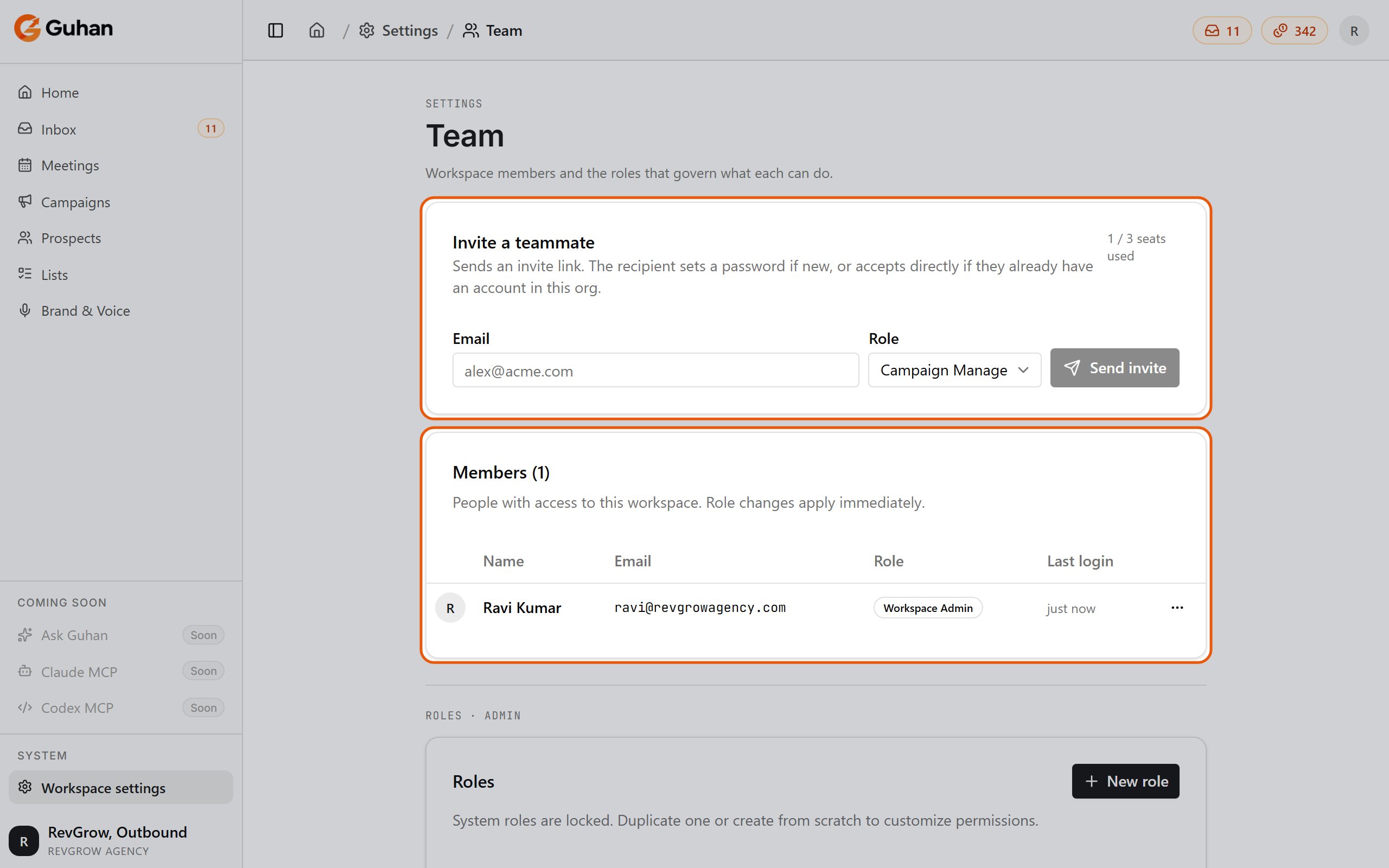
Settings, Team: invite by email, pick a role, and see members and seats
Change a role or remove a member
On Settings → Team, change a member’s role or remove them. Data they created, such as Lists and sequences, stays in the workspace.Custom roles
Org admins can create custom roles from the Team page by choosing individual permissions. Built-in roles can’t be edited, only used as they are. A role that’s still assigned to members can’t be deleted.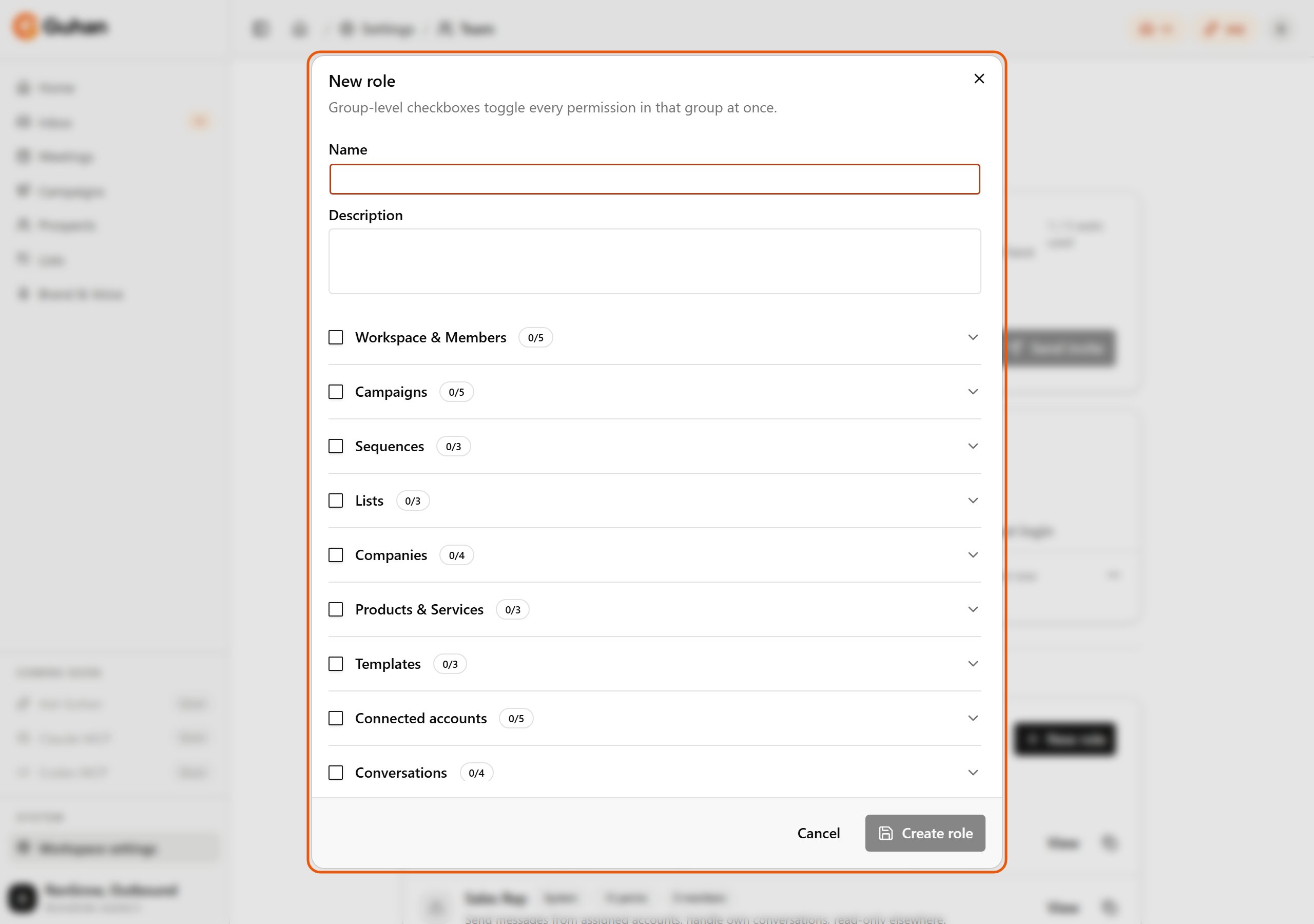
New role: name it, then tick the permissions it grants, group by group
Sender account ownership
Every sender account has an owner, the person whose LinkedIn, email, or WhatsApp it is. Conversations on that sender are assigned to the owner, and messages go out under their name. Admins can reassign ownership.If something’s off
- Can’t invite anyone. You’re out of seats. Add a license under Billing.
- A teammate can’t see a conversation. Sales Reps see only conversations assigned to them. Reassign it or change their role.
- A teammate can’t see a Settings row. Several rows are for admins only. See Workspace settings.
Related
Plans and credits
Licenses, seats, and credits.
Do not contact
The workspace block list.